



Online Fix
771 files
-
How to Play Wasteland 3 Online
Download the latest Wasteland 3 Online Fix to play multiplayer with your friends through Steam. This Online Fix includes all the required files to enable co-op gameplay. Follow the installation guide below to install the fix correctly, invite your friends, and enjoy online gameplay.
Installation
Download the Online Fix files.
Extract the archive using the password:
zeigames.com
Copy all extracted files into your Wasteland 3 installation folder and replace existing files if prompted.
Launching the Game
Sign in to your Steam account.
Run WL3.exe from the game directory.
Wait for the game to load.
Playing with Friends
Make sure you and your friends are added as friends on Steam.
Create or host a multiplayer session.
Invite your friends through the in-game invite system.
If Invites Don't Work
Some versions of the Online Fix may have issues with the built-in invite feature.
If the in-game invite button doesn't work:
Open the Steam Overlay (Shift + Tab).
Find your friend's profile in your Steam Friends list.
Right-click their name and select Invite to Game (Spacewar).
Your friend can then accept the invitation and join your session.
Need Help with Online Fix?
If you're not familiar with Online Fix or Steam invitations, check out our guide:
How to Play Games Online?
Enjoy playing Wasteland 3 online with your friends!
Looking for the Full Game?
Looking for the full version of Wasteland 3? Visit our Wasteland 3 Free Download page below.
- 81 Downloads
-
How to Play Echo Point Nova Online
Download the latest Echo Point Nova Online Fix to play multiplayer with your friends through Steam. This Online Fix includes all the required files to enable co-op gameplay. Follow the installation guide below to install the fix correctly, invite your friends, and enjoy online gameplay.
Installation
Download the Online Fix files.
Extract the archive using the password:
zeigames.com
Copy all extracted files into your Echo Point Nova installation folder and replace existing files if prompted.
Launching the Game
Sign in to your Steam account.
Run Greylock.exe from the game directory.
Wait for the game to load.
Playing with Friends
Make sure you and your friends are added as friends on Steam.
Create or host a multiplayer session.
Invite your friends through the in-game invite system.
If Invites Don't Work
Some versions of the Online Fix may have issues with the built-in invite feature.
If the in-game invite button doesn't work:
Open the Steam Overlay (Shift + Tab).
Find your friend's profile in your Steam Friends list.
Right-click their name and select Invite to Game (Spacewar).
Your friend can then accept the invitation and join your session.
Need Help with Online Fix?
If you're not familiar with Online Fix or Steam invitations, check out our guide:
How to Play Games Online?
Enjoy playing Echo Point Nova online with your friends!
Looking for the Full Game?
Looking for the full version of Echo Point Nova? Visit our Echo Point Nova Free Download page below.
- 81 Downloads
-
How to Play Brick Rigs Online
Download the latest Brick Rigs Online Fix to play multiplayer with your friends through Steam. This Online Fix includes all the required files to enable co-op gameplay. Follow the installation guide below to install the fix correctly, invite your friends, and enjoy online gameplay.
Installation
Download the Online Fix files.
Extract the archive using the password:
zeigames.com
Copy all extracted files into your Brick Rigs installation folder and replace existing files if prompted.
Launching the Game
Sign in to your Steam account.
Run Brick Rigs.exe from the game directory.
Wait for the game to load.
Playing with Friends
Make sure you and your friends are added as friends on Steam.
Create or host a multiplayer session.
Invite your friends through the in-game invite system.
If Invites Don't Work
Some versions of the Online Fix may have issues with the built-in invite feature.
If the in-game invite button doesn't work:
Open the Steam Overlay (Shift + Tab).
Find your friend's profile in your Steam Friends list.
Right-click their name and select Invite to Game (Spacewar).
Your friend can then accept the invitation and join your session.
Need Help with Online Fix?
If you're not familiar with Online Fix or Steam invitations, check out our guide:
How to Play Games Online?
Enjoy playing Brick Rigs online with your friends!
Looking for the Full Game?
Looking for the full version of Brick Rigs? Visit our Brick Rigs Free Download page below.
- 211 Downloads
-
How to Play Age of Wonders 4 Online
Download the latest Age of Wonders 4 Online Fix to play multiplayer with your friends through Steam. This Online Fix includes all the required files to enable co-op gameplay. Follow the installation guide below to install the fix correctly, invite your friends, and enjoy online gameplay.
Installation
Download the Online Fix files.
Extract the archive using the password:
zeigames.com
Copy all extracted files into your Age of Wonders 4 installation folder and replace existing files if prompted.
Launching the Game
Sign in to your Steam account.
Run dowser.exe from the game directory.
Wait for the game to load.
Playing with Friends
Make sure you and your friends are added as friends on Steam.
Create or host a multiplayer session.
Invite your friends through the in-game invite system.
If Invites Don't Work
Some versions of the Online Fix may have issues with the built-in invite feature.
If the in-game invite button doesn't work:
Open the Steam Overlay (Shift + Tab).
Find your friend's profile in your Steam Friends list.
Right-click their name and select Invite to Game (Spacewar).
Your friend can then accept the invitation and join your session.
Need Help with Online Fix?
If you're not familiar with Online Fix or Steam invitations, check out our guide:
How to Play Games Online?
Enjoy playing Age of Wonders 4 online with your friends!
Looking for the Full Game?
Looking for the full version of Age of Wonders 4? Visit our Age of Wonders 4 Free Download page below.
- 363 Downloads
-
How to Play Alchemy Factory Online
Download the latest Alchemy Factory Online Fix to play multiplayer with your friends through Steam. This Online Fix includes all the required files to enable co-op gameplay. Follow the installation guide below to install the fix correctly, invite your friends, and enjoy online gameplay.
Installation
Download the Online Fix files.
Extract the archive using the password:
zeigames.com
Copy all extracted files into your Alchemy Factory installation folder and replace existing files if prompted.
Launching the Game
Sign in to your Steam account.
Run Alchemy Factory.exe from the game directory.
Wait for the game to load.
Playing with Friends
Make sure you and your friends are added as friends on Steam.
Create or host a multiplayer session.
Invite your friends through the in-game invite system.
If Invites Don't Work
Some versions of the Online Fix may have issues with the built-in invite feature.
If the in-game invite button doesn't work:
Open the Steam Overlay (Shift + Tab).
Find your friend's profile in your Steam Friends list.
Right-click their name and select Invite to Game (Spacewar).
Your friend can then accept the invitation and join your session.
Need Help with Online Fix?
If you're not familiar with Online Fix or Steam invitations, check out our guide:
How to Play Games Online?
Enjoy playing Alchemy Factory online with your friends!
Looking for the Full Game?
Looking for the full version of Alchemy Factory? Visit our Alchemy Factory Free Download page below.
- 443 Downloads
-
How to Play LEGO Worlds Online
Download the latest LEGO Worlds Online Fix to play multiplayer with your friends through Steam. This Online Fix includes all the required files to enable co-op gameplay. Follow the installation guide below to install the fix correctly, invite your friends, and enjoy online gameplay.
Installation
Download the Online Fix files.
Extract the archive using the password:
zeigames.com
Copy all extracted files into your LEGO Worlds installation folder and replace existing files if prompted.
Launching the Game
Sign in to your Steam account.
Run LEGO_Worlds.exe from the game directory.
Wait for the game to load.
Playing with Friends
Make sure you and your friends are added as friends on Steam.
Create or host a multiplayer session.
Invite your friends through the in-game invite system.
If Invites Don't Work
Some versions of the Online Fix may have issues with the built-in invite feature.
If the in-game invite button doesn't work:
Open the Steam Overlay (Shift + Tab).
Find your friend's profile in your Steam Friends list.
Right-click their name and select Invite to Game (Spacewar).
Your friend can then accept the invitation and join your session.
Need Help with Online Fix?
If you're not familiar with Online Fix or Steam invitations, check out our guide:
How to Play Games Online?
Enjoy playing LEGO Worlds online with your friends!
Looking for the Full Game?
Looking for the full version of LEGO Worlds? Visit our LEGO Worlds Free Download page below.
- 44 Downloads
-
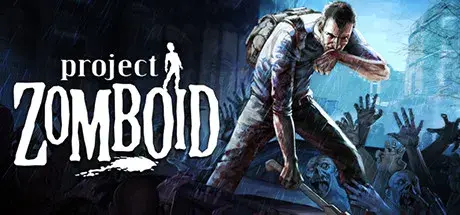
How to Play Project Zomboid Online
Download the latest Project Zomboid Online Fix to play multiplayer with your friends through Steam. This Online Fix includes all the required files to enable co-op gameplay. Follow the installation guide below to install the fix correctly, invite your friends, and enjoy online gameplay.
Installation
Download the Online Fix files.
Extract the archive using the password:
zeigames.com
Copy all extracted files into your Project Zomboid installation folder and replace existing files if prompted.
Launching the Game
Sign in to your Steam account.
Run ProjectZomboid64.exe from the game directory.
Wait for the game to load.
Playing with Friends
Make sure you and your friends are added as friends on Steam.
Create or host a multiplayer session.
Invite your friends through the in-game invite system.
If Invites Don't Work
Some versions of the Online Fix may have issues with the built-in invite feature.
If the in-game invite button doesn't work:
Open the Steam Overlay (Shift + Tab).
Find your friend's profile in your Steam Friends list.
Right-click their name and select Invite to Game (Spacewar).
Your friend can then accept the invitation and join your session.
Need Help with Online Fix?
If you're not familiar with Online Fix or Steam invitations, check out our guide:
How to Play Games Online?
Enjoy playing Project Zomboid online with your friends!
Looking for the Full Game?
Looking for the full version of Project Zomboid? Visit our Project Zomboid Free Download page below.
- 6,688 Downloads
- 3 Comments
-
How to Play Left 4 Dead 2 Online
Download the latest Left 4 Dead 2 Online Fix to play multiplayer with your friends through Steam. This Online Fix includes all the required files to enable co-op gameplay. Follow the installation guide below to install the fix correctly, invite your friends, and enjoy online gameplay.
Installation
Download the Online Fix files.
Extract the archive using the password:
zeigames.com
Copy all extracted files into your Left 4 Dead 2 installation folder and replace existing files if prompted.
Launching the Game
Sign in to your Steam account.
Run revLoader.exe from the game directory.
Wait for the game to load.
Playing with Friends
Make sure you and your friends are added as friends on Steam.
Create or host a multiplayer session.
Invite your friends through the in-game invite system.
If Invites Don't Work
Some versions of the Online Fix may have issues with the built-in invite feature.
If the in-game invite button doesn't work:
Open the Steam Overlay (Shift + Tab).
Find your friend's profile in your Steam Friends list.
Right-click their name and select Invite to Game (Spacewar).
Your friend can then accept the invitation and join your session.
Need Help with Online Fix?
If you're not familiar with Online Fix or Steam invitations, check out our guide:
How to Play Games Online?
Enjoy playing Left 4 Dead 2 online with your friends!
Looking for the Full Game?
Looking for the full version of Left 4 Dead 2? Visit our Left 4 Dead 2 Free Download page below.
- 517 Downloads
-
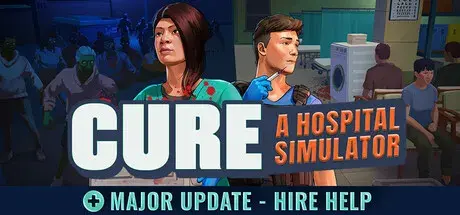
How to Play CURE - A Hospital Simulator Online
Download the latest CURE - A Hospital Simulator Online Fix to play multiplayer with your friends through Steam. This Online Fix includes all the required files to enable co-op gameplay. Follow the installation guide below to install the fix correctly, invite your friends, and enjoy online gameplay.
Installation
Download the Online Fix files.
Extract the archive using the password:
zeigames.com
Copy all extracted files into your CURE - A Hospital Simulator installation folder and replace existing files if prompted.
Launching the Game
Sign in to your Steam account.
Run CURE.exe from the game directory.
Wait for the game to load.
Playing with Friends
Make sure you and your friends are added as friends on Steam.
Create or host a multiplayer session.
Invite your friends through the in-game invite system.
If Invites Don't Work
Some versions of the Online Fix may have issues with the built-in invite feature.
If the in-game invite button doesn't work:
Open the Steam Overlay (Shift + Tab).
Find your friend's profile in your Steam Friends list.
Right-click their name and select Invite to Game (Spacewar).
Your friend can then accept the invitation and join your session.
Need Help with Online Fix?
If you're not familiar with Online Fix or Steam invitations, check out our guide:
How to Play Games Online?
Enjoy playing CURE - A Hospital Simulator online with your friends!
Looking for the Full Game?
Looking for the full version of CURE - A Hospital Simulator? Visit our CURE - A Hospital Simulator Free Download page below.
- 270 Downloads
-
How to Play Tabletop Simulator Online
Download the latest Tabletop Simulator Online Fix to play multiplayer with your friends through Steam. This Online Fix includes all the required files to enable co-op gameplay. Follow the installation guide below to install the fix correctly, invite your friends, and enjoy online gameplay.
Installation
Download the Online Fix files.
Extract the archive using the password:
zeigames.com
Copy all extracted files into your Tabletop Simulator installation folder and replace existing files if prompted.
Launching the Game
Sign in to your Steam account.
Run Tabletop Simulator.exe from the game directory.
Wait for the game to load.
Playing with Friends
Make sure you and your friends are added as friends on Steam.
Create or host a multiplayer session.
Invite your friends through the in-game invite system.
If Invites Don't Work
Some versions of the Online Fix may have issues with the built-in invite feature.
If the in-game invite button doesn't work:
Open the Steam Overlay (Shift + Tab).
Find your friend's profile in your Steam Friends list.
Right-click their name and select Invite to Game (Spacewar).
Your friend can then accept the invitation and join your session.
Need Help with Online Fix?
If you're not familiar with Online Fix or Steam invitations, check out our guide:
How to Play Games Online?
Enjoy playing Tabletop Simulator online with your friends!
Looking for the Full Game?
Looking for the full version of Tabletop Simulator? Visit our Tabletop Simulator Free Download page below.
- 811 Downloads
-
How to Play Bloons TD 6 Online
Download the latest Bloons TD 6 Online Fix to play multiplayer with your friends through Steam. This Online Fix includes all the required files to enable co-op gameplay. Follow the installation guide below to install the fix correctly, invite your friends, and enjoy online gameplay.
Installation
Download the Online Fix files.
Extract the archive using the password:
zeigames.com
Copy all extracted files into your Bloons TD 6 installation folder and replace existing files if prompted.
Launching the Game
Sign in to your Steam account.
Run Bloons TD 6.exe from the game directory.
Wait for the game to load.
Playing with Friends
Make sure you and your friends are added as friends on Steam.
Create or host a multiplayer session.
Invite your friends through the in-game invite system.
If Invites Don't Work
Some versions of the Online Fix may have issues with the built-in invite feature.
If the in-game invite button doesn't work:
Open the Steam Overlay (Shift + Tab).
Find your friend's profile in your Steam Friends list.
Right-click their name and select Invite to Game (Spacewar).
Your friend can then accept the invitation and join your session.
Need Help with Online Fix?
If you're not familiar with Online Fix or Steam invitations, check out our guide:
How to Play Games Online?
Enjoy playing Bloons TD 6 online with your friends!
Looking for the Full Game?
Looking for the full version of Bloons TD 6? Visit our Bloons TD 6 Free Download page below.
- 2,799 Downloads
-
How to Play Tower Networking Inc. Online
Download the latest Tower Networking Inc. Online Fix to play multiplayer with your friends through Steam. This Online Fix includes all the required files to enable co-op gameplay. Follow the installation guide below to install the fix correctly, invite your friends, and enjoy online gameplay.
Installation
Download the Online Fix files.
Extract the archive using the password:
zeigames.com
Copy all extracted files into your Tower Networking Inc. installation folder and replace existing files if prompted.
Launching the Game
Sign in to your Steam account.
Run Tower Networking Inc.exe from the game directory.
Wait for the game to load.
Playing with Friends
Make sure you and your friends are added as friends on Steam.
Create or host a multiplayer session.
Invite your friends through the in-game invite system.
If Invites Don't Work
Some versions of the Online Fix may have issues with the built-in invite feature.
If the in-game invite button doesn't work:
Open the Steam Overlay (Shift + Tab).
Find your friend's profile in your Steam Friends list.
Right-click their name and select Invite to Game (Spacewar).
Your friend can then accept the invitation and join your session.
Need Help with Online Fix?
If you're not familiar with Online Fix or Steam invitations, check out our guide:
How to Play Games Online?
Enjoy playing Tower Networking Inc. online with your friends!
Looking for the Full Game?
Looking for the full version of Tower Networking Inc.? Visit our Tower Networking Inc. Free Download page below.
- 355 Downloads
-
How to Play Avatar Legends: The Fighting Game Online
Download the latest Avatar Legends: The Fighting Game Online Fix to play multiplayer with your friends through Steam. This Online Fix includes all the required files to enable co-op gameplay. Follow the installation guide below to install the fix correctly, invite your friends, and enjoy online gameplay.
Installation
Download the Online Fix files.
Extract the archive using the password:
zeigames.com
Copy all extracted files into your Avatar Legends: The Fighting Game installation folder and replace existing files if prompted.
Launching the Game
Sign in to your Steam account.
Run Atla.exe from the game directory.
Wait for the game to load.
Playing with Friends
Make sure you and your friends are added as friends on Steam.
Create or host a multiplayer session.
Invite your friends through the in-game invite system.
If Invites Don't Work
Some versions of the Online Fix may have issues with the built-in invite feature.
If the in-game invite button doesn't work:
Open the Steam Overlay (Shift + Tab).
Find your friend's profile in your Steam Friends list.
Right-click their name and select Invite to Game (Spacewar).
Your friend can then accept the invitation and join your session.
Need Help with Online Fix?
If you're not familiar with Online Fix or Steam invitations, check out our guide:
How to Play Games Online?
Enjoy playing Avatar Legends: The Fighting Game online with your friends!
Looking for the Full Game?
Looking for the full version of Avatar Legends: The Fighting Game? Visit our Avatar Legends: The Fighting Game Free Download page below.
- 203 Downloads
-
How to Play Parisian Brasserie Simulator Online
Download the latest Parisian Brasserie Simulator Online Fix to play multiplayer with your friends through Steam. This Online Fix includes all the required files to enable co-op gameplay. Follow the installation guide below to install the fix correctly, invite your friends, and enjoy online gameplay.
Installation
Download the Online Fix files.
Extract the archive using the password:
zeigames.com
Copy all extracted files into your Parisian Brasserie Simulator installation folder and replace existing files if prompted.
Launching the Game
Sign in to your Steam account.
Run Parisian Brasserie Simulator.exe from the game directory.
Wait for the game to load.
Playing with Friends
Make sure you and your friends are added as friends on Steam.
Create or host a multiplayer session.
Invite your friends through the in-game invite system.
If Invites Don't Work
Some versions of the Online Fix may have issues with the built-in invite feature.
If the in-game invite button doesn't work:
Open the Steam Overlay (Shift + Tab).
Find your friend's profile in your Steam Friends list.
Right-click their name and select Invite to Game (Spacewar).
Your friend can then accept the invitation and join your session.
Need Help with Online Fix?
If you're not familiar with Online Fix or Steam invitations, check out our guide:
How to Play Games Online?
Enjoy playing Parisian Brasserie Simulator online with your friends!
Looking for the Full Game?
Looking for the full version of Parisian Brasserie Simulator? Visit our Parisian Brasserie Simulator Free Download page below.
- 348 Downloads
-
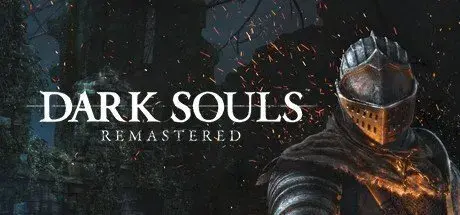
How to Play DARK SOULS Remastered Online
Download the latest DARK SOULS Remastered Online Fix to play multiplayer with your friends through Steam. This Online Fix includes all the required files to enable co-op gameplay. Follow the installation guide below to install the fix correctly, invite your friends, and enjoy online gameplay.
Installation
Download the Online Fix files.
Extract the archive using the password:
zeigames.com
Copy all extracted files into your DARK SOULS Remastered installation folder and replace existing files if prompted.
Launching the Game
Sign in to your Steam account.
Run ds1sc_launcher.exe from the game directory.
Wait for the game to load.
Go to inventory Use Crystal Eye Orb item You will be automatically connected to the host.
Go to inventory Use Blessed Eye Orb item Wait for friends to connect.
Playing with Friends
Make sure you and your friends are added as friends on Steam.
Create or host a multiplayer session.
Invite your friends through the in-game invite system.
If Invites Don't Work
Some versions of the Online Fix may have issues with the built-in invite feature.
If the in-game invite button doesn't work:
Open the Steam Overlay (Shift + Tab).
Find your friend's profile in your Steam Friends list.
Right-click their name and select Invite to Game (Spacewar).
Your friend can then accept the invitation and join your session.
Need Help with Online Fix?
If you're not familiar with Online Fix or Steam invitations, check out our guide:
How to Play Games Online?
Enjoy playing DARK SOULS Remastered online with your friends!
Looking for the Full Game?
Looking for the full version of DARK SOULS Remastered? Visit our DARK SOULS Remastered Free Download page below.
- 2,215 Downloads
-
How to Play Portal 2 Online
Download the latest Portal 2 Online Fix to play multiplayer with your friends through Steam. This Online Fix includes all the required files to enable co-op gameplay. Follow the installation guide below to install the fix correctly, invite your friends, and enjoy online gameplay.
Installation
Download the Online Fix files.
Extract the archive using the password:
zeigames.com
Copy all extracted files into your Portal 2 installation folder and replace existing files if prompted.
Launching the Game
Sign in to your Steam account.
Run Launcher.exe from the game directory.
Wait for the game to load.
Playing with Friends
Make sure you and your friends are added as friends on Steam.
Create or host a multiplayer session.
Invite your friends through the in-game invite system.
If Invites Don't Work
Some versions of the Online Fix may have issues with the built-in invite feature.
If the in-game invite button doesn't work:
Open the Steam Overlay (Shift + Tab).
Find your friend's profile in your Steam Friends list.
Right-click their name and select Invite to Game (Spacewar).
Your friend can then accept the invitation and join your session.
Need Help with Online Fix?
If you're not familiar with Online Fix or Steam invitations, check out our guide:
How to Play Games Online?
Enjoy playing Portal 2 online with your friends!
Looking for the Full Game?
Looking for the full version of Portal 2? Visit our Portal 2 Free Download page below.
- 663 Downloads
-
How to Play LEGO Party! Online
Download the latest LEGO Party! Online Fix to play multiplayer with your friends through Steam. This Online Fix includes all the required files to enable co-op gameplay. Follow the installation guide below to install the fix correctly, invite your friends, and enjoy online gameplay.
Installation
Download the Online Fix files.
Extract the archive using the password:
zeigames.com
Copy all extracted files into your LEGO Party! installation folder and replace existing files if prompted.
Launching the Game
Sign in to your Steam account.
ADD Brawlhalla game on your Steam Library!
Or you can paste this code Win+R (steam://install/291550)
Run LEGO Party.exe from the game directory.
Wait for the game to load.
Create a Local Game and invite your friend REMOTE PLAY.
Invite them to play "REMOTE PLAY" using the Steam interface.
Playing with Friends
Make sure you and your friends are added as friends on Steam.
Create or host a multiplayer session.
Invite your friends through the in-game invite system.
If Invites Don't Work
Some versions of the Online Fix may have issues with the built-in invite feature.
If the in-game invite button doesn't work:
Open the Steam Overlay (Shift + Tab).
Find your friend's profile in your Steam Friends list.
Right-click their name and select Invite to Game (Spacewar).
Your friend can then accept the invitation and join your session.
Need Help with Online Fix?
If you're not familiar with Online Fix or Steam invitations, check out our guide:
How to Play Games Online?
Enjoy playing LEGO Party! online with your friends!
Looking for the Full Game?
Looking for the full version of LEGO Party!? Visit our LEGO Party! Free Download page below.
- 2,271 Downloads
- 8 Comments
-
How to Play Sackboy: A Big Adventure Online
Download the latest Sackboy: A Big Adventure Online Fix to play multiplayer with your friends through Steam. This Online Fix includes all the required files to enable co-op gameplay. Follow the installation guide below to install the fix correctly, invite your friends, and enjoy online gameplay.
Installation
Download the Online Fix files.
Extract the archive using the password:
zeigames.com
Copy all extracted files into your Sackboy: A Big Adventure installation folder and replace existing files if prompted.
Launching the Game
Sign in to your Steam account.
Add you Steam Library "Brawlhalla" Game!
Run Sackboy.exe from the game directory.
Wait for the game to load.
Playing with Friends
Make sure you and your friends are added as friends on Steam.
Create or host a multiplayer session.
Invite your friends through the in-game invite system.
If Invites Don't Work
Some versions of the Online Fix may have issues with the built-in invite feature.
If the in-game invite button doesn't work:
Open the Steam Overlay (Shift + Tab).
Find your friend's profile in your Steam Friends list.
Right-click their name and select Invite to Game (Spacewar).
Your friend can then accept the invitation and join your session.
Need Help with Online Fix?
If you're not familiar with Online Fix or Steam invitations, check out our guide:
How to Play Games Online?
Enjoy playing Sackboy: A Big AdventureE online with your friends!
Looking for the Full Game?
Looking for the full version of Sackboy: A Big Adventure? Visit our Sackboy: A Big Adventure Free Download page below.
- 425 Downloads
-
How to Play Storage Hunter Simulator Online
Download the latest Storage Hunter Simulator Online Fix to play multiplayer with your friends through Steam. This Online Fix includes all the required files to enable co-op gameplay. Follow the installation guide below to install the fix correctly, invite your friends, and enjoy online gameplay.
Installation
Download the Online Fix files.
Extract the archive using the password:
zeigames.com
Copy all extracted files into your Storage Hunter Simulator installation folder and replace existing files if prompted.
Launching the Game
Sign in to your Steam account.
Run Storage Hunter Simulator.exe from the game directory.
Wait for the game to load.
Playing with Friends
Make sure you and your friends are added as friends on Steam.
Create or host a multiplayer session.
Invite your friends through the in-game invite system.
If Invites Don't Work
Some versions of the Online Fix may have issues with the built-in invite feature.
If the in-game invite button doesn't work:
Open the Steam Overlay (Shift + Tab).
Find your friend's profile in your Steam Friends list.
Right-click their name and select Invite to Game (Spacewar).
Your friend can then accept the invitation and join your session.
Need Help with Online Fix?
If you're not familiar with Online Fix or Steam invitations, check out our guide:
How to Play Games Online?
Enjoy playing Storage Hunter Simulator online with your friends!
Looking for the Full Game?
Looking for the full version of Storage Hunter Simulator? Visit our Storage Hunter Simulator Free Download page below.
- 1,137 Downloads
-
How to Play Side Effects Online
Download the latest Side Effects Online Fix to play multiplayer with your friends through Steam. This Online Fix includes all the required files to enable co-op gameplay. Follow the installation guide below to install the fix correctly, invite your friends, and enjoy online gameplay.
Installation
Download the Online Fix files.
Extract the archive using the password:
zeigames.com
Copy all extracted files into your Side Effects installation folder and replace existing files if prompted.
Launching the Game
Sign in to your Steam account.
Run Side Effects.exe from the game directory.
Wait for the game to load.
Playing with Friends
Make sure you and your friends are added as friends on Steam.
Create or host a multiplayer session.
Invite your friends through the in-game invite system.
If Invites Don't Work
Some versions of the Online Fix may have issues with the built-in invite feature.
If the in-game invite button doesn't work:
Open the Steam Overlay (Shift + Tab).
Find your friend's profile in your Steam Friends list.
Right-click their name and select Invite to Game (Spacewar).
Your friend can then accept the invitation and join your session.
Need Help with Online Fix?
If you're not familiar with Online Fix or Steam invitations, check out our guide:
How to Play Games Online?
Enjoy playing Side Effects online with your friends!
Looking for the Full Game?
Looking for the full version of Side Effects? Visit our Side Effects Free Download page below.
- 462 Downloads
-
How to Play SOS OPS! Online
Download the latest SOS OPS! Online Fix to play multiplayer with your friends through Steam. This Online Fix includes all the required files to enable co-op gameplay. Follow the installation guide below to install the fix correctly, invite your friends, and enjoy online gameplay.
Installation
Download the Online Fix files.
Extract the archive using the password:
zeigames.com
Copy all extracted files into your GAME installation folder and replace existing files if prompted.
Launching the Game
Sign in to your Steam account.
Run SOS OPS.exe from the game directory.
Wait for the game to load.
Log in to your Epic Games Store account in the browser window that opens.
Playing with Friends
Make sure you and your friends are added as friends on Steam.
Create or host a multiplayer session.
Invite your friends through the in-game invite system.
If Invites Don't Work
Some versions of the Online Fix may have issues with the built-in invite feature.
If the in-game invite button doesn't work:
Open the Steam Overlay (Shift + Tab).
Find your friend's profile in your Steam Friends list.
Right-click their name and select Invite to Game (Spacewar).
Your friend can then accept the invitation and join your session.
Need Help with Online Fix?
If you're not familiar with Online Fix or Steam invitations, check out our guide:
How to Play Games Online?
Enjoy playing SOS OPS! online with your friends!
Looking for the Full Game?
Looking for the full version of SOS OPS!? Visit our SOS OPS! Free Download page below.
- 394 Downloads
-
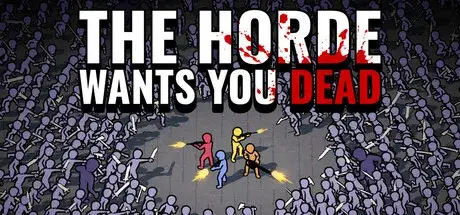
How to Play The Horde Wants You Dead Online
Download the latest The Horde Wants You Dead Online Fix to play multiplayer with your friends through Steam. This Online Fix includes all the required files to enable co-op gameplay. Follow the installation guide below to install the fix correctly, invite your friends, and enjoy online gameplay.
Installation
Download the Online Fix files.
Extract the archive using the password:
zeigames.com
Copy all extracted files into your The Horde Wants You Dead installation folder and replace existing files if prompted.
Launching the Game
Sign in to your Steam account.
Run The Horde Wants You Dead.exe from the game directory.
Wait for the game to load.
Playing with Friends
Make sure you and your friends are added as friends on Steam.
Create or host a multiplayer session.
Invite your friends through the in-game invite system.
If Invites Don't Work
Some versions of the Online Fix may have issues with the built-in invite feature.
If the in-game invite button doesn't work:
Open the Steam Overlay (Shift + Tab).
Find your friend's profile in your Steam Friends list.
Right-click their name and select Invite to Game (Spacewar).
Your friend can then accept the invitation and join your session.
Need Help with Online Fix?
If you're not familiar with Online Fix or Steam invitations, check out our guide:
How to Play Games Online?
Enjoy playing The Horde Wants You Dead online with your friends!
Looking for the Full Game?
Looking for the full version of The Horde Wants You Dead? Visit our The Horde Wants You Dead Free Download page below.
- 476 Downloads
-
How to Play Hearts of Iron IV Online
Download the latest Hearts of Iron IV Online Fix to play multiplayer with your friends through Steam. This Online Fix includes all the required files to enable co-op gameplay. Follow the installation guide below to install the fix correctly, invite your friends, and enjoy online gameplay.
Installation
Download the Online Fix files.
Extract the archive using the password:
zeigames.com
Copy all extracted files into your Hearts of Iron IV installation folder and replace existing files if prompted.
Launching the Game
Sign in to your Steam account.
Run hoi4.exe from the game directory.
Wait for the game to load.
Playing with Friends
Make sure you and your friends are added as friends on Steam.
Create or host a multiplayer session.
Invite your friends through the in-game invite system.
If Invites Don't Work
Some versions of the Online Fix may have issues with the built-in invite feature.
If the in-game invite button doesn't work:
Open the Steam Overlay (Shift + Tab).
Find your friend's profile in your Steam Friends list.
Right-click their name and select Invite to Game (Spacewar).
Your friend can then accept the invitation and join your session.
Need Help with Online Fix?
If you're not familiar with Online Fix or Steam invitations, check out our guide:
How to Play Games Online?
Enjoy playing Hearts of Iron IV online with your friends!
Looking for the Full Game?
Looking for the full version of Hearts of Iron IV? Visit our Hearts of Iron IV Free Download page below.
- 5,560 Downloads
- 1 Comments
-
How to Play Enshrouded Online
Download the latest Enshrouded Online Fix to play multiplayer with your friends through Steam. This Online Fix includes all the required files to enable co-op gameplay. Follow the installation guide below to install the fix correctly, invite your friends, and enjoy online gameplay.
Installation
Download the Online Fix files.
Extract the archive using the password:
zeigames.com
Copy all extracted files into your Enshrouded installation folder and replace existing files if prompted.
Launching the Game
Sign in to your Steam account.
Run Enshrouded.exe from the game directory.
Wait for the game to load.
Playing with Friends
Make sure you and your friends are added as friends on Steam.
Create or host a multiplayer session.
Invite your friends through the in-game invite system.
If Invites Don't Work
Some versions of the Online Fix may have issues with the built-in invite feature.
If the in-game invite button doesn't work:
Open the Steam Overlay (Shift + Tab).
Find your friend's profile in your Steam Friends list.
Right-click their name and select Invite to Game (Spacewar).
Your friend can then accept the invitation and join your session.
Need Help with Online Fix?
If you're not familiar with Online Fix or Steam invitations, check out our guide:
How to Play Games Online?
Enjoy playing Enshrouded online with your friends!
Looking for the Full Game?
Looking for the full version of Enshrouded? Visit our Enshrouded Free Download page below.
- 4,019 Downloads
- 1 Comments
-
How to Play Salt 2: Shores of Gold Online
Download the latest Salt 2: Shores of Gold Online Fix to play multiplayer with your friends through Steam. This Online Fix includes all the required files to enable co-op gameplay. Follow the installation guide below to install the fix correctly, invite your friends, and enjoy online gameplay.
Installation
Download the Online Fix files.
Extract the archive using the password:
zeigames.com
Copy all extracted files into your Salt 2: Shores of Gold installation folder and replace existing files if prompted.
Launching the Game
Sign in to your Steam account.
Run Salt 2: Shores of Gold.exe from the game directory.
Wait for the game to load.
Playing with Friends
Make sure you and your friends are added as friends on Steam.
Create or host a multiplayer session.
Invite your friends through the in-game invite system.
If Invites Don't Work
Some versions of the Online Fix may have issues with the built-in invite feature.
If the in-game invite button doesn't work:
Open the Steam Overlay (Shift + Tab).
Find your friend's profile in your Steam Friends list.
Right-click their name and select Invite to Game (Spacewar).
Your friend can then accept the invitation and join your session.
Need Help with Online Fix?
If you're not familiar with Online Fix or Steam invitations, check out our guide:
How to Play Games Online?
Enjoy playing Salt 2: Shores of Gold online with your friends!
Looking for the Full Game?
Looking for the full version of Salt 2: Shores of Gold? Visit our Salt 2: Shores of Gold Free Download page below.
- 137 Downloads




















Last Updated
-
- 145 Downloads
- 0 Comments
-
- 9 Downloads
- 0 Comments
-
- 3 Downloads
- 0 Comments
-
- 0 Downloads
- 0 Comments
-
- 8 Downloads
- 0 Comments




File Comments
-
Been playing online since the 5th with no issues. Now getting a "Backend Login Failed, Invalid Response!" error when attempting to access online multiplayer.
-
I cant get the DLCs to get working, literally tried everything. If I run the game with the provided steamapi64.dll this error shows up and the game wont launch: Easy Anti-Cheat Unknown file version (C:\Games\Halloween.v1.0.0.69333.ZeiZavoGames.com\Engine\Binaries\ThirdParty\Steamworks\Steamv161\Win64\steam_api64.dll). If i remove the file and use the original one (clean file) the game launches and is playable but no dlc. Please help!
-
You can't play private lobby.
-
when i am playing with my friend, i got error 1 anticheat, every time i am not the host, and when i am the host my friend got error 1 anticheat every time
-
Nop but you can still play without problems
-
it opens epic games every 20 minutes
-
The same problem of the game crashing is happening with v1.0.50.
-
does anyone know a solution to the error code from anti cheat?
-
Somehow screen goes black when i try to invite my friend, and yes i applied online fix correctly + have antivirus turned off
-
Anyway to change the ingame language?




Top Downloads
-
- 922 Downloads
- 1 Comments
-
- 895 Downloads
- 5 Comments
-
- 723 Downloads
- 0 Comments
-
- 153 Downloads
- 9 Comments
-
- 132 Downloads
- 7 Comments


-
- 3,197 Downloads
- 0 Comments
-
- 991 Downloads
- 1 Comments
-
- 971 Downloads
- 9 Comments
-
- 895 Downloads
- 5 Comments
-
- 504 Downloads
- 19 Comments

-
- 8,574 Downloads
- 9 Comments
-
- 7,512 Downloads
- 4 Comments
-
- 6,635 Downloads
- 20 Comments
-
- 6,030 Downloads
- 3 Comments
-
- 5,830 Downloads
- 0 Comments




-
- 21,189 Downloads
- 4 Comments
-
- 9,968 Downloads
- 0 Comments
-
- 9,488 Downloads
- 9 Comments
-
- 8,688 Downloads
- 0 Comments
-
- 8,290 Downloads
- 0 Comments