



Online Fix
771 files
-
How to Play Age of Darkness: Final Stand Online
Download the latest Age of Darkness: Final Stand Online Fix to play multiplayer with your friends through Steam. This Online Fix includes all the required files to enable co-op gameplay. Follow the installation guide below to install the fix correctly, invite your friends, and enjoy online gameplay.
Installation
Download the Online Fix files.
Extract the archive using the password:
zeigames.com
Copy all extracted files into your Age of Darkness: Final Stand installation folder and replace existing files if prompted.
Launching the Game
Sign in to your Steam account.
Run Age of Darkness Final Stand.exe from the game directory.
Wait for the game to load.
Playing with Friends
Make sure you and your friends are added as friends on Steam.
Create or host a multiplayer session.
Invite your friends through the in-game invite system.
If Invites Don't Work
Some versions of the Online Fix may have issues with the built-in invite feature.
If the in-game invite button doesn't work:
Open the Steam Overlay (Shift + Tab).
Find your friend's profile in your Steam Friends list.
Right-click their name and select Invite to Game (Spacewar).
Your friend can then accept the invitation and join your session.
Need Help with Online Fix?
If you're not familiar with Online Fix or Steam invitations, check out our guide:
How to Play Games Online?
Enjoy playing Age of Darkness: Final Stand online with your friends!
Looking for the Full Game?
Looking for the full version of Age of Darkness: Final Stand? Visit our Age of Darkness: Final Stand Free Download page below.
- 720 Downloads
-
How to Play Orcs Must Die! Deathtrap Online
Download the latest Orcs Must Die! Deathtrap Online Fix to play multiplayer with your friends through Steam. This Online Fix includes all the required files to enable co-op gameplay. Follow the installation guide below to install the fix correctly, invite your friends, and enjoy online gameplay.
Installation
Download the Online Fix files.
Extract the archive using the password:
zeigames.com
Copy all extracted files into your Orcs Must Die! Deathtrap installation folder and replace existing files if prompted.
Launching the Game
Sign in to your Steam account.
Run Orcs Must Die! Deathtrap.exe from the game directory.
Wait for the game to load.
Playing with Friends
Make sure you and your friends are added as friends on Steam.
Create or host a multiplayer session.
Invite your friends through the in-game invite system.
If Invites Don't Work
Some versions of the Online Fix may have issues with the built-in invite feature.
If the in-game invite button doesn't work:
Open the Steam Overlay (Shift + Tab).
Find your friend's profile in your Steam Friends list.
Right-click their name and select Invite to Game (Spacewar).
Your friend can then accept the invitation and join your session.
Need Help with Online Fix?
If you're not familiar with Online Fix or Steam invitations, check out our guide:
How to Play Games Online?
Enjoy playing Orcs Must Die! Deathtrap online with your friends!
Looking for the Full Game?
Looking for the full version of Orcs Must Die! Deathtrap? Visit our Orcs Must Die! Deathtrap Free Download page below.
- 216 Downloads
-
How to Play A Way Out Online
Download the latest A Way Out Online Fix to play multiplayer with your friends through Steam. This Online Fix includes all the required files to enable co-op gameplay. Follow the installation guide below to install the fix correctly, invite your friends, and enjoy online gameplay.
Installation
Download the Online Fix files.
Extract the archive using the password:
zeigames.com
Copy all extracted files into your A Way Out installation folder and replace existing files if prompted.
Launching the Game
Sign in to your Steam account.
Press the keyboard shortcut Windows + R;
Write in the line steam://install/349620 and click OK;
Start installing BlastZone 2 Demo.
Run Haze1\Binaries\Win64\AWayOut.exe from the game directory.
Wait for the game to load.
Open Steam-Overlay and invite a friend to Steam Remote Play.
Playing with Friends
Make sure you and your friends are added as friends on Steam.
Create or host a multiplayer session.
Invite your friends through the in-game invite system.
If Invites Don't Work
Some versions of the Online Fix may have issues with the built-in invite feature.
If the in-game invite button doesn't work:
Open the Steam Overlay (Shift + Tab).
Find your friend's profile in your Steam Friends list.
Right-click their name and select Invite to Game (Spacewar).
Your friend can then accept the invitation and join your session.
Need Help with Online Fix?
If you're not familiar with Online Fix or Steam invitations, check out our guide:
How to Play Games Online?
Enjoy playing A Way Out online with your friends!
Looking for the Full Game?
Looking for the full version of A Way Out? Visit our A Way Out Free Download page below.
- 3,893 Downloads
- 1 Comments
-
How to Play An Eggstremely Hard Game Online
Download the latest An Eggstremely Hard Game Online Fix to play multiplayer with your friends through Steam. This Online Fix includes all the required files to enable co-op gameplay. Follow the installation guide below to install the fix correctly, invite your friends, and enjoy online gameplay.
Installation
Download the Online Fix files.
Extract the archive using the password:
zeigames.com
Copy all extracted files into your An Eggstremely Hard Game installation folder and replace existing files if prompted.
Launching the Game
Sign in to your Steam account.
Run An Eggstremely Hard Game.exe from the game directory.
Wait for the game to load.
Playing with Friends
Make sure you and your friends are added as friends on Steam.
Create or host a multiplayer session.
Invite your friends through the in-game invite system.
If Invites Don't Work
Some versions of the Online Fix may have issues with the built-in invite feature.
If the in-game invite button doesn't work:
Open the Steam Overlay (Shift + Tab).
Find your friend's profile in your Steam Friends list.
Right-click their name and select Invite to Game (Spacewar).
Your friend can then accept the invitation and join your session.
Need Help with Online Fix?
If you're not familiar with Online Fix or Steam invitations, check out our guide:
How to Play Games Online?
Enjoy playing An Eggstremely Hard Game online with your friends!
Looking for the Full Game?
Looking for the full version of An Eggstremely Hard Game? Visit our An Eggstremely Hard Game Free Download page below.
- 96 Downloads
-
How to Play Buckshot Roulette Online
Download the latest Buckshot Roulette Online Fix to play multiplayer with your friends through Steam. This Online Fix includes all the required files to enable co-op gameplay. Follow the installation guide below to install the fix correctly, invite your friends, and enjoy online gameplay.
Installation
Download the Online Fix files.
Extract the archive using the password:
zeigames.com
Copy all extracted files into your Buckshot Roulette installation folder and replace existing files if prompted.
Launching the Game
Sign in to your Steam account.
Run Buckshot Roulette.exe from the game directory.
Wait for the game to load.
Playing with Friends
Make sure you and your friends are added as friends on Steam.
Create or host a multiplayer session.
Invite your friends through the in-game invite system.
If Invites Don't Work
Some versions of the Online Fix may have issues with the built-in invite feature.
If the in-game invite button doesn't work:
Open the Steam Overlay (Shift + Tab).
Find your friend's profile in your Steam Friends list.
Right-click their name and select Invite to Game (Spacewar).
Your friend can then accept the invitation and join your session.
Need Help with Online Fix?
If you're not familiar with Online Fix or Steam invitations, check out our guide:
How to Play Games Online?
Enjoy playing Buckshot Roulette online with your friends!
Looking for the Full Game?
Looking for the full version of Buckshot Roulette? Visit our Buckshot Roulette Free Download page below.
- 1,156 Downloads
-
How to Play DOOM + DOOM II Online
Download the latest DOOM + DOOM II Online Fix to play multiplayer with your friends through Steam. This Online Fix includes all the required files to enable co-op gameplay. Follow the installation guide below to install the fix correctly, invite your friends, and enjoy online gameplay.
Installation
Download the Online Fix files.
Extract the archive using the password:
zeigames.com
Copy all extracted files into your DOOM + DOOM II installation folder and replace existing files if prompted.
Launching the Game
Sign in to your Steam account.
Run rerelease\doom.exe from the game directory.
Wait for the game to load.
Playing with Friends
Make sure you and your friends are added as friends on Steam.
Create or host a multiplayer session.
Invite your friends through the in-game invite system.
If Invites Don't Work
Some versions of the Online Fix may have issues with the built-in invite feature.
If the in-game invite button doesn't work:
Open the Steam Overlay (Shift + Tab).
Find your friend's profile in your Steam Friends list.
Right-click their name and select Invite to Game (Spacewar).
Your friend can then accept the invitation and join your session.
Need Help with Online Fix?
If you're not familiar with Online Fix or Steam invitations, check out our guide:
How to Play Games Online?
Enjoy playing DOOM + DOOM II online with your friends!
Looking for the Full Game?
Looking for the full version of DOOM + DOOM II? Visit our DOOM + DOOM II Free Download page below.
- 101 Downloads
-
How to Play Shieldwall Online
Download the latest ShieldwallOnline Fix to play multiplayer with your friends through Steam. This Online Fix includes all the required files to enable co-op gameplay. Follow the installation guide below to install the fix correctly, invite your friends, and enjoy online gameplay.
Installation
Download the Online Fix files.
Extract the archive using the password:
zeigames.com
Copy all extracted files into your Shieldwallinstallation folder and replace existing files if prompted.
Launching the Game
Sign in to your Steam account.
Run Shieldwall.exe from the game directory.
Wait for the game to load.
Playing with Friends
Make sure you and your friends are added as friends on Steam.
Create or host a multiplayer session.
Invite your friends through the in-game invite system.
If Invites Don't Work
Some versions of the Online Fix may have issues with the built-in invite feature.
If the in-game invite button doesn't work:
Open the Steam Overlay (Shift + Tab).
Find your friend's profile in your Steam Friends list.
Right-click their name and select Invite to Game (Spacewar).
Your friend can then accept the invitation and join your session.
Need Help with Online Fix?
If you're not familiar with Online Fix or Steam invitations, check out our guide:
How to Play Games Online?
Enjoy playing Shieldwall online with your friends!
Looking for the Full Game?
Looking for the full version of Shieldwall? Visit our Shieldwall Free Download page below.
- 966 Downloads
-
How to Play Schedule I Online
Download the latest Schedule I Online Fix to play multiplayer with your friends through Steam. This Online Fix includes all the required files to enable co-op gameplay. Follow the installation guide below to install the fix correctly, invite your friends, and enjoy online gameplay.
Installation
Download the Online Fix files.
Extract the archive using the password:
zeigames.com
Copy all extracted files into your Schedule I installation folder and replace existing files if prompted.
Launching the Game
Sign in to your Steam account.
Run Schedule I.exe from the game directory.
Wait for the game to load.
Playing with Friends
Make sure you and your friends are added as friends on Steam.
Create or host a multiplayer session.
Invite your friends through the in-game invite system.
If Invites Don't Work
Some versions of the Online Fix may have issues with the built-in invite feature.
If the in-game invite button doesn't work:
Open the Steam Overlay (Shift + Tab).
Find your friend's profile in your Steam Friends list.
Right-click their name and select Invite to Game (Spacewar).
Your friend can then accept the invitation and join your session.
Need Help with Online Fix?
If you're not familiar with Online Fix or Steam invitations, check out our guide:
How to Play Games Online?
Enjoy playing Schedule I online with your friends!
Looking for the Full Game?
Looking for the full version of Schedule I? Visit our Schedule I Free Download page below.
- 21,185 Downloads
- 4 Comments
-
How to Play Lethal League Blaze Online
Download the latest Lethal League Blaze Online Fix to play multiplayer with your friends through Steam. This Online Fix includes all the required files to enable co-op gameplay. Follow the installation guide below to install the fix correctly, invite your friends, and enjoy online gameplay.
Installation
Download the Online Fix files.
Extract the archive using the password:
zeigames.com
Copy all extracted files into your Lethal League Blaze installation folder and replace existing files if prompted.
Launching the Game
Sign in to your Steam account.
Run LLBlaze.exe from the game directory.
Wait for the game to load.
Playing with Friends
Make sure you and your friends are added as friends on Steam.
Create or host a multiplayer session.
Invite your friends through the in-game invite system.
If Invites Don't Work
Some versions of the Online Fix may have issues with the built-in invite feature.
If the in-game invite button doesn't work:
Open the Steam Overlay (Shift + Tab).
Find your friend's profile in your Steam Friends list.
Right-click their name and select Invite to Game (Spacewar).
Your friend can then accept the invitation and join your session.
Need Help with Online Fix?
If you're not familiar with Online Fix or Steam invitations, check out our guide:
How to Play Games Online?
Enjoy playing Lethal League Blaze online with your friends!
Looking for the Full Game?
Looking for the full version of Lethal League Blaze? Visit our Lethal League Blaze Free Download page below.
- 14 Downloads
-
How to Play Abyssus Online
Download the latest Abyssus Online Fix to play multiplayer with your friends through Steam. This Online Fix includes all the required files to enable co-op gameplay. Follow the installation guide below to install the fix correctly, invite your friends, and enjoy online gameplay.
Installation
Download the Online Fix files.
Extract the archive using the password:
zeigames.com
Copy all extracted files into your Abyssus installation folder and replace existing files if prompted.
Launching the Game
Sign in to your Steam account.
Run RGame.exe from the game directory.
Wait for the game to load.
Playing with Friends
Make sure you and your friends are added as friends on Steam.
Create or host a multiplayer session.
Invite your friends through the in-game invite system.
If Invites Don't Work
Some versions of the Online Fix may have issues with the built-in invite feature.
If the in-game invite button doesn't work:
Open the Steam Overlay (Shift + Tab).
Find your friend's profile in your Steam Friends list.
Right-click their name and select Invite to Game (Spacewar).
Your friend can then accept the invitation and join your session.
Need Help with Online Fix?
If you're not familiar with Online Fix or Steam invitations, check out our guide:
How to Play Games Online?
Enjoy playing Abyssus online with your friends!
Looking for the Full Game?
Looking for the full version of Abyssus? Visit our AbyssusFree Download page below.
- 1,032 Downloads
-
How to Play Deep Rock Galactic Online
Download the latest Deep Rock Galactic Online Fix to play multiplayer with your friends through Steam. This Online Fix includes all the required files to enable co-op gameplay. Follow the installation guide below to install the fix correctly, invite your friends, and enjoy online gameplay.
Installation
Download the Online Fix files.
Extract the archive using the password:
zeigames.com
Copy all extracted files into your Deep Rock Galactic installation folder and replace existing files if prompted.
Launching the Game
Sign in to your Steam account.
Run ModIOAuth.exe (done once a year.)
Run FSD.exe from the game directory.
Wait for the game to load.
Playing with Friends
Make sure you and your friends are added as friends on Steam.
Create or host a multiplayer session.
Invite your friends through the in-game invite system.
If Invites Don't Work
Some versions of the Online Fix may have issues with the built-in invite feature.
If the in-game invite button doesn't work:
Open the Steam Overlay (Shift + Tab).
Find your friend's profile in your Steam Friends list.
Right-click their name and select Invite to Game (Spacewar).
Your friend can then accept the invitation and join your session.
Need Help with Online Fix?
If you're not familiar with Online Fix or Steam invitations, check out our guide:
How to Play Games Online?
Enjoy playing Deep Rock Galactic online with your friends!
Looking for the Full Game?
Looking for the full version of Deep Rock Galactic? Visit our Deep Rock Galactic Free Download page below.
- 1,036 Downloads
-
How to Play ICARUS Online
Download the latest ICARUS Online Fix to play multiplayer with your friends through Steam. This Online Fix includes all the required files to enable co-op gameplay. Follow the installation guide below to install the fix correctly, invite your friends, and enjoy online gameplay.
Installation
Download the Online Fix files.
Extract the archive using the password:
zeigames.com
Copy all extracted files into your ICARUS installation folder and replace existing files if prompted.
Launching the Game
Sign in to your Steam account.
Run ICARUS.exe from the game directory.
Wait for the game to load.
Playing with Friends
Make sure you and your friends are added as friends on Steam.
Create or host a multiplayer session.
Invite your friends through the in-game invite system.
If Invites Don't Work
Some versions of the Online Fix may have issues with the built-in invite feature.
If the in-game invite button doesn't work:
Open the Steam Overlay (Shift + Tab).
Find your friend's profile in your Steam Friends list.
Right-click their name and select Invite to Game (Spacewar).
Your friend can then accept the invitation and join your session.
Need Help with Online Fix?
If you're not familiar with Online Fix or Steam invitations, check out our guide:
How to Play Games Online?
Enjoy playing ICARUS online with your friends!
Looking for the Full Game?
Looking for the full version of ICARUS? Visit our ICARUS Free Download page below.
- 3,714 Downloads
- 1 Comments
-
How to Play Labyrinthine Online
Download the latest Labyrinthine Online Fix to play multiplayer with your friends through Steam. This Online Fix includes all the required files to enable co-op gameplay. Follow the installation guide below to install the fix correctly, invite your friends, and enjoy online gameplay.
Installation
Download the Online Fix files.
Extract the archive using the password:
zeigames.com
Copy all extracted files into your Labyrinthine installation folder and replace existing files if prompted.
Launching the Game
Sign in to your Steam account.
Run Labyrinthine.exe from the game directory.
Wait for the game to load.
Playing with Friends
Make sure you and your friends are added as friends on Steam.
Create or host a multiplayer session.
Invite your friends through the in-game invite system.
If Invites Don't Work
Some versions of the Online Fix may have issues with the built-in invite feature.
If the in-game invite button doesn't work:
Open the Steam Overlay (Shift + Tab).
Find your friend's profile in your Steam Friends list.
Right-click their name and select Invite to Game (Spacewar).
Your friend can then accept the invitation and join your session.
Need Help with Online Fix?
If you're not familiar with Online Fix or Steam invitations, check out our guide:
How to Play Games Online?
Enjoy playing Labyrinthine online with your friends!
Looking for the Full Game?
Looking for the full version of Labyrinthine? Visit our Labyrinthine Free Download page below.
- 434 Downloads
-
How to Play GAME Online
Download the latest Cuphead Online Fix to play multiplayer with your friends through Steam. This Online Fix includes all the required files to enable co-op gameplay. Follow the installation guide below to install the fix correctly, invite your friends, and enjoy online gameplay.
Installation
Download the Online Fix files.
Extract the archive using the password:
zeigames.com
Copy all extracted files into your Cuphead installation folder and replace existing files if prompted.
Launching the Game
Sign in to your Steam account.
ADD The Brawlhalla game on your steam library.
Run Cuphead.exe from the game directory.
Wait for the game to load.
For the game, the one who will create a server, you need to have a joystick, as Steam Remote Play in this game does not work quite correctly and allows the second player (connected) to play only on the keyboard.
Playing with Friends
Make sure you and your friends are added as friends on Steam.
Create or host a multiplayer session.
Invite your friends through the in-game invite system.
If Invites Don't Work
Some versions of the Online Fix may have issues with the built-in invite feature.
If the in-game invite button doesn't work:
Open the Steam Overlay (Shift + Tab).
Find your friend's profile in your Steam Friends list.
Right-click their name and select Invite to Game (Brawlhalla).
Your friend can then accept the invitation and join your session.
Need Help with Online Fix?
If you're not familiar with Online Fix or Steam invitations, check out our guide:
How to Play Games Online?
Enjoy playing Cuphead online with your friends!
Looking for the Full Game?
Looking for the full version of Cuphead? Visit our Cuphead Free Download page below.
- 785 Downloads
-
How to Play Rise of the Ronin Online
Download the latest Rise of the Ronin Online Fix to play multiplayer with your friends through Steam. This Online Fix includes all the required files to enable co-op gameplay. Follow the installation guide below to install the fix correctly, invite your friends, and enjoy online gameplay.
Installation
Download the Online Fix files.
Extract the archive using the password:
zeigames.com
Copy all extracted files into your Rise of the Ronin installation folder and replace existing files if prompted.
Launching the Game
Sign in to your Steam account.
Run Rise of the Ronin.exe from the game directory.
Wait for the game to load.
Select the mission > Cooperate > Recruit Backup > Begin Recruitment Invitations Invite friends and wait for them to connect.
Playing with Friends
Make sure you and your friends are added as friends on Steam.
Create or host a multiplayer session.
Invite your friends through the in-game invite system.
If Invites Don't Work
Some versions of the Online Fix may have issues with the built-in invite feature.
If the in-game invite button doesn't work:
Open the Steam Overlay (Shift + Tab).
Find your friend's profile in your Steam Friends list.
Right-click their name and select Invite to Game (Spacewar).
Your friend can then accept the invitation and join your session.
Need Help with Online Fix?
If you're not familiar with Online Fix or Steam invitations, check out our guide:
How to Play Games Online?
Enjoy playing Rise of the Ronin online with your friends!
Looking for the Full Game?
Looking for the full version of Rise of the Ronin? Visit our Rise of the Ronin Free Download page below.
- 433 Downloads
-
How to Play Old Market Simulator Online
Download the latest Old Market Simulator Online Fix to play multiplayer with your friends through Steam. This Online Fix includes all the required files to enable co-op gameplay. Follow the installation guide below to install the fix correctly, invite your friends, and enjoy online gameplay.
Installation
Download the Online Fix files.
Extract the archive using the password:
zeigames.com
Copy all extracted files into your Old Market Simulator installation folder and replace existing files if prompted.
Launching the Game
Sign in to your Steam account.
Run Old Market Simulator.exe from the game directory.
Wait for the game to load.
Playing with Friends
Make sure you and your friends are added as friends on Steam.
Create or host a multiplayer session.
Invite your friends through the in-game invite system.
If Invites Don't Work
Some versions of the Online Fix may have issues with the built-in invite feature.
If the in-game invite button doesn't work:
Open the Steam Overlay (Shift + Tab).
Find your friend's profile in your Steam Friends list.
Right-click their name and select Invite to Game (Spacewar).
Your friend can then accept the invitation and join your session.
Need Help with Online Fix?
If you're not familiar with Online Fix or Steam invitations, check out our guide:
How to Play Games Online?
Enjoy playing Old Market Simulator online with your friends!
Looking for the Full Game?
Looking for the full version of Old Market Simulator? Visit our Old Market Simulator Free Download page below.
- 1,267 Downloads
- 2 Comments
-
How to Play Boba Cafe Simulator Online
Download the latest Boba Cafe Simulator Online Fix to play multiplayer with your friends through Steam. This Online Fix includes all the required files to enable co-op gameplay. Follow the installation guide below to install the fix correctly, invite your friends, and enjoy online gameplay.
Installation
Download the Online Fix files.
Extract the archive using the password:
zeigames.com
Copy all extracted files into your Boba Cafe Simulator installation folder and replace existing files if prompted.
Launching the Game
Sign in to your Steam account.
Run Boba Cafe Simulator.exe from the game directory.
Wait for the game to load.
Playing with Friends
Make sure you and your friends are added as friends on Steam.
Create or host a multiplayer session.
Invite your friends through the in-game invite system.
If Invites Don't Work
Some versions of the Online Fix may have issues with the built-in invite feature.
If the in-game invite button doesn't work:
Open the Steam Overlay (Shift + Tab).
Find your friend's profile in your Steam Friends list.
Right-click their name and select Invite to Game (Spacewar).
Your friend can then accept the invitation and join your session.
Need Help with Online Fix?
If you're not familiar with Online Fix or Steam invitations, check out our guide:
How to Play Games Online?
Enjoy playing Boba Cafe Simulator online with your friends!
Looking for the Full Game?
Looking for the full version of Boba Cafe Simulator? Visit our Boba Cafe Simulator Free Download page below.
- 130 Downloads
-
How to Play Door Kickers 2: Task Force North Online
Download the latest Door Kickers 2: Task Force North Online Fix to play multiplayer with your friends through Steam. This Online Fix includes all the required files to enable co-op gameplay. Follow the installation guide below to install the fix correctly, invite your friends, and enjoy online gameplay.
Installation
Download the Online Fix files.
Extract the archive using the password:
zeigames.com
Copy all extracted files into your Door Kickers 2: Task Force North installation folder and replace existing files if prompted.
Launching the Game
Sign in to your Steam account.
Run DoorKickers2.exe or runtime_win32/DoorKickers2.exe from the game directory.
Wait for the game to load.
Playing with Friends
Make sure you and your friends are added as friends on Steam.
Create or host a multiplayer session.
Invite your friends through the in-game invite system.
If Invites Don't Work
Some versions of the Online Fix may have issues with the built-in invite feature.
If the in-game invite button doesn't work:
Open the Steam Overlay (Shift + Tab).
Find your friend's profile in your Steam Friends list.
Right-click their name and select Invite to Game (Spacewar).
Your friend can then accept the invitation and join your session.
Need Help with Online Fix?
If you're not familiar with Online Fix or Steam invitations, check out our guide:
How to Play Games Online?
Enjoy playing Door Kickers 2: Task Force North online with your friends!
Looking for the Full Game?
Looking for the full version of Door Kickers 2: Task Force North? Visit our Door Kickers 2: Task Force North Free Download page below.
- 849 Downloads
-
How to Play Barotrauma Online
Download the latest Barotrauma Online Fix to play multiplayer with your friends through Steam. This Online Fix includes all the required files to enable co-op gameplay. Follow the installation guide below to install the fix correctly, invite your friends, and enjoy online gameplay.
Installation
Download the Online Fix files.
Extract the archive using the password:
zeigames.com
Copy all extracted files into your Barotrauma installation folder and replace existing files if prompted.
Launching the Game
Sign in to your Steam account.
Run Barotrauma.exe from the game directory.
Wait for the game to load.
Playing with Friends
Make sure you and your friends are added as friends on Steam.
Create or host a multiplayer session.
Invite your friends through the in-game invite system.
If Invites Don't Work
Some versions of the Online Fix may have issues with the built-in invite feature.
If the in-game invite button doesn't work:
Open the Steam Overlay (Shift + Tab).
Find your friend's profile in your Steam Friends list.
Right-click their name and select Invite to Game (Spacewar).
Your friend can then accept the invitation and join your session.
Need Help with Online Fix?
If you're not familiar with Online Fix or Steam invitations, check out our guide:
How to Play Games Online?
Enjoy playing Barotrauma online with your friends!
Looking for the Full Game?
Looking for the full version of Barotrauma? Visit our Barotrauma Free Download page below.
- 2,897 Downloads
-
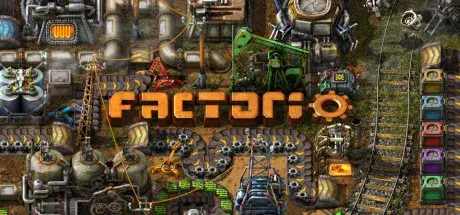
How to Play Factorio Online
Download the latest Factorio Online Fix to play multiplayer with your friends through Steam. This Online Fix includes all the required files to enable co-op gameplay. Follow the installation guide below to install the fix correctly, invite your friends, and enjoy online gameplay.
Installation
Download the Online Fix files.
Extract the archive using the password:
zeigames.com
Copy all extracted files into your Factorio installation folder and replace existing files if prompted.
Launching the Game
Sign in to your Steam account.
Run bin\x64\Factorio.exe from the game directory.
Wait for the game to load.
Playing with Friends
Make sure you and your friends are added as friends on Steam.
Create or host a multiplayer session.
Invite your friends through the in-game invite system.
If Invites Don't Work
Some versions of the Online Fix may have issues with the built-in invite feature.
If the in-game invite button doesn't work:
Open the Steam Overlay (Shift + Tab).
Find your friend's profile in your Steam Friends list.
Right-click their name and select Invite to Game (Spacewar).
Your friend can then accept the invitation and join your session.
Need Help with Online Fix?
If you're not familiar with Online Fix or Steam invitations, check out our guide:
How to Play Games Online?
Enjoy playing Factorio online with your friends!
Looking for the Full Game?
Looking for the full version of Factorio? Visit our Factorio Free Download page below.
- 4,240 Downloads
- 1 Comments
-
How to Play Pass the Fear Online
Download the latest Pass the Fear Online Fix to play multiplayer with your friends through Steam. This Online Fix includes all the required files to enable co-op gameplay. Follow the installation guide below to install the fix correctly, invite your friends, and enjoy online gameplay.
Installation
Download the Online Fix files.
Extract the archive using the password:
zeigames.com
Copy all extracted files into your Pass the Fear installation folder and replace existing files if prompted.
Launching the Game
Sign in to your Steam account.
Run Pass the Fear.exe from the game directory.
Wait for the game to load.
Playing with Friends
Make sure you and your friends are added as friends on Steam.
Create or host a multiplayer session.
Invite your friends through the in-game invite system.
If Invites Don't Work
Some versions of the Online Fix may have issues with the built-in invite feature.
If the in-game invite button doesn't work:
Open the Steam Overlay (Shift + Tab).
Find your friend's profile in your Steam Friends list.
Right-click their name and select Invite to Game (Spacewar).
Your friend can then accept the invitation and join your session.
Need Help with Online Fix?
If you're not familiar with Online Fix or Steam invitations, check out our guide:
How to Play Games Online?
Enjoy playing Pass the Fear online with your friends!
Pass the Fear Free Download
- 260 Downloads












Last Updated
-
- 145 Downloads
- 0 Comments
-
- 9 Downloads
- 0 Comments
-
- 3 Downloads
- 0 Comments
-
- 0 Downloads
- 0 Comments
-
- 8 Downloads
- 0 Comments




File Comments
-
Been playing online since the 5th with no issues. Now getting a "Backend Login Failed, Invalid Response!" error when attempting to access online multiplayer.
-
I cant get the DLCs to get working, literally tried everything. If I run the game with the provided steamapi64.dll this error shows up and the game wont launch: Easy Anti-Cheat Unknown file version (C:\Games\Halloween.v1.0.0.69333.ZeiZavoGames.com\Engine\Binaries\ThirdParty\Steamworks\Steamv161\Win64\steam_api64.dll). If i remove the file and use the original one (clean file) the game launches and is playable but no dlc. Please help!
-
You can't play private lobby.
-
when i am playing with my friend, i got error 1 anticheat, every time i am not the host, and when i am the host my friend got error 1 anticheat every time
-
Nop but you can still play without problems
-
it opens epic games every 20 minutes
-
The same problem of the game crashing is happening with v1.0.50.
-
does anyone know a solution to the error code from anti cheat?
-
Somehow screen goes black when i try to invite my friend, and yes i applied online fix correctly + have antivirus turned off
-
Anyway to change the ingame language?




Top Downloads
-
- 922 Downloads
- 1 Comments
-
- 895 Downloads
- 5 Comments
-
- 723 Downloads
- 0 Comments
-
- 153 Downloads
- 9 Comments
-
- 132 Downloads
- 7 Comments


-
- 3,197 Downloads
- 0 Comments
-
- 991 Downloads
- 1 Comments
-
- 971 Downloads
- 9 Comments
-
- 895 Downloads
- 5 Comments
-
- 504 Downloads
- 19 Comments

-
- 8,574 Downloads
- 9 Comments
-
- 7,512 Downloads
- 4 Comments
-
- 6,635 Downloads
- 20 Comments
-
- 6,030 Downloads
- 3 Comments
-
- 5,830 Downloads
- 0 Comments



-
- 21,189 Downloads
- 4 Comments
-
- 9,968 Downloads
- 0 Comments
-
- 9,488 Downloads
- 9 Comments
-
- 8,688 Downloads
- 0 Comments
-
- 8,290 Downloads
- 0 Comments