



Online Fix
771 files
-
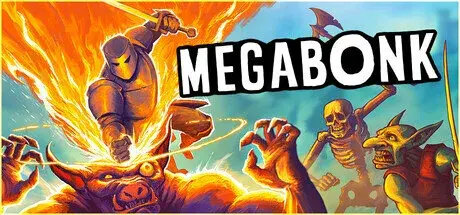
How to Play Megabonk Online
Download the latest Megabonk Online Fix to play multiplayer with your friends through Steam. This Online Fix includes all the required files to enable co-op gameplay. Follow the installation guide below to install the fix correctly, invite your friends, and enjoy online gameplay.
Installation
Download the Online Fix files.
Extract the archive using the password:
zeigames.com
Copy all extracted files into your Megabonk installation folder and replace existing files if prompted.
Launching the Game
Sign in to your Steam account.
Run Megabonk.exe from the game directory.
Wait for the game to load.
Playing with Friends
Make sure you and your friends are added as friends on Steam.
Create or host a multiplayer session.
Invite your friends through the in-game invite system.
If Invites Don't Work
Some versions of the Online Fix may have issues with the built-in invite feature.
If the in-game invite button doesn't work:
Open the Steam Overlay (Shift + Tab).
Find your friend's profile in your Steam Friends list.
Right-click their name and select Invite to Game (Spacewar).
Your friend can then accept the invitation and join your session.
Need Help with Online Fix?
If you're not familiar with Online Fix or Steam invitations, check out our guide:
How to Play Games Online?
Enjoy playing Megabonk online with your friends!
Looking for the Full Game?
Looking for the full version of Megabonk? Visit our Megabonk Free Download page below.
- 138 Downloads
-
How to Play Cloudheim Online
Download the latest Cloudheim Online Fix to play multiplayer with your friends through Steam. This Online Fix includes all the required files to enable co-op gameplay. Follow the installation guide below to install the fix correctly, invite your friends, and enjoy online gameplay.
Installation
Download the Online Fix files.
Extract the archive using the password:
zeigames.com
Copy all extracted files into your Cloudheim installation folder and replace existing files if prompted.
Launching the Game
Sign in to your Steam account.
Run CloudheimSteam.exe from the game directory.
Wait for the game to load.
Playing with Friends
Make sure you and your friends are added as friends on Steam.
Create or host a multiplayer session.
Invite your friends through the in-game invite system.
If Invites Don't Work
Some versions of the Online Fix may have issues with the built-in invite feature.
If the in-game invite button doesn't work:
Open the Steam Overlay (Shift + Tab).
Find your friend's profile in your Steam Friends list.
Right-click their name and select Invite to Game (Spacewar).
Your friend can then accept the invitation and join your session.
Need Help with Online Fix?
If you're not familiar with Online Fix or Steam invitations, check out our guide:
How to Play Games Online?
Enjoy playing Cloudheim online with your friends!
Looking for the Full Game?
Looking for the full version of Cloudheim? Visit our Cloudheim Free Download page below.
- 854 Downloads
-
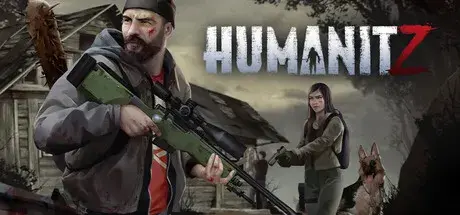
How to Play HumanitZ Online
Download the latest HumanitZ Online Fix to play multiplayer with your friends through Steam. This Online Fix includes all the required files to enable co-op gameplay. Follow the installation guide below to install the fix correctly, invite your friends, and enjoy online gameplay.
Installation
Download the Online Fix files.
Extract the archive using the password:
zeigames.com
Copy all extracted files into your HumanitZ installation folder and replace existing files if prompted.
Launching the Game
Sign in to your Steam account.
Run HumanitZ.exe from the game directory.
Wait for the game to load.
Playing with Friends
Make sure you and your friends are added as friends on Steam.
Create or host a multiplayer session.
Invite your friends through the in-game invite system.
If Invites Don't Work
Some versions of the Online Fix may have issues with the built-in invite feature.
If the in-game invite button doesn't work:
Open the Steam Overlay (Shift + Tab).
Find your friend's profile in your Steam Friends list.
Right-click their name and select Invite to Game (Spacewar).
Your friend can then accept the invitation and join your session.
Need Help with Online Fix?
If you're not familiar with Online Fix or Steam invitations, check out our guide:
How to Play Games Online?
Enjoy playing HumanitZ online with your friends!
Looking for the Full Game?
Looking for the full version of HumanitZ? Visit our HumanitZ Free Download page below.
- 508 Downloads
-
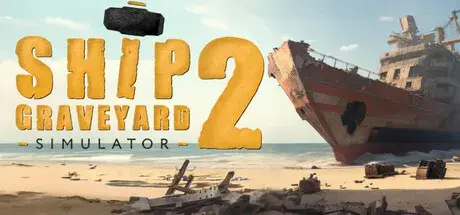
How to Play Ship Graveyard Simulator 2 Online
Download the latest Ship Graveyard Simulator 2 Online Fix to play multiplayer with your friends through Steam. This Online Fix includes all the required files to enable co-op gameplay. Follow the installation guide below to install the fix correctly, invite your friends, and enjoy online gameplay.
Installation
Download the Online Fix files.
Extract the archive using the password:
zeigames.com
Copy all extracted files into your Ship Graveyard Simulator 2 installation folder and replace existing files if prompted.
Launching the Game
Sign in to your Steam account.
Run Ship Graveyard Simulator 2.exe from the game directory.
Wait for the game to load.
Playing with Friends
Make sure you and your friends are added as friends on Steam.
Create or host a multiplayer session.
Invite your friends through the in-game invite system.
If Invites Don't Work
Some versions of the Online Fix may have issues with the built-in invite feature.
If the in-game invite button doesn't work:
Open the Steam Overlay (Shift + Tab).
Find your friend's profile in your Steam Friends list.
Right-click their name and select Invite to Game (Spacewar).
Your friend can then accept the invitation and join your session.
Need Help with Online Fix?
If you're not familiar with Online Fix or Steam invitations, check out our guide:
How to Play Games Online?
Enjoy playing Ship Graveyard Simulator 2 online with your friends!
Looking for the Full Game?
Looking for the full version of Ship Graveyard Simulator 2? Visit our Ship Graveyard Simulator 2 Free Download page below.
- 330 Downloads
- 2 Comments
-
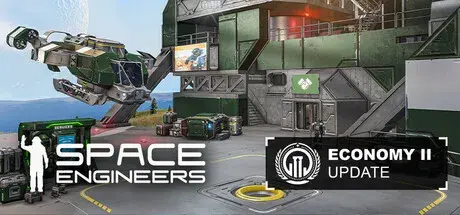
How to Play Space Engineers Online
Download the latest Space Engineers Online Fix to play multiplayer with your friends through Steam. This Online Fix includes all the required files to enable co-op gameplay. Follow the installation guide below to install the fix correctly, invite your friends, and enjoy online gameplay.
Installation
Download the Online Fix files.
Extract the archive using the password:
zeigames.com
Copy all extracted files into your Space Engineers installation folder and replace existing files if prompted.
Launching the Game
Sign in to your Steam account.
Run Bin\SpaceEngineers.exe from the game directory.
Wait for the game to load.
Playing with Friends
Make sure you and your friends are added as friends on Steam.
Create or host a multiplayer session.
Invite your friends through the in-game invite system.
If Invites Don't Work
Some versions of the Online Fix may have issues with the built-in invite feature.
If the in-game invite button doesn't work:
Open the Steam Overlay (Shift + Tab).
Find your friend's profile in your Steam Friends list.
Right-click their name and select Invite to Game (Spacewar).
Your friend can then accept the invitation and join your session.
Need Help with Online Fix?
If you're not familiar with Online Fix or Steam invitations, check out our guide:
How to Play Games Online?
Enjoy playing Space Engineers online with your friends!
Looking for the Full Game?
Looking for the full version of Space Engineers? Visit our Space Engineers Free Download page below.
- 458 Downloads
-
How to Play Rabbit and Steel Online
Download the latest Rabbit and Steel Online Fix to play multiplayer with your friends through Steam. This Online Fix includes all the required files to enable co-op gameplay. Follow the installation guide below to install the fix correctly, invite your friends, and enjoy online gameplay.
Installation
Download the Online Fix files.
Extract the archive using the password:
zeigames.com
Copy all extracted files into your Rabbit and Steel installation folder and replace existing files if prompted.
Launching the Game
Sign in to your Steam account.
Run Rabbit and Steel.exe from the game directory.
Wait for the game to load.
Playing with Friends
Make sure you and your friends are added as friends on Steam.
Create or host a multiplayer session.
Invite your friends through the in-game invite system.
If Invites Don't Work
Some versions of the Online Fix may have issues with the built-in invite feature.
If the in-game invite button doesn't work:
Open the Steam Overlay (Shift + Tab).
Find your friend's profile in your Steam Friends list.
Right-click their name and select Invite to Game (Spacewar).
Your friend can then accept the invitation and join your session.
Need Help with Online Fix?
If you're not familiar with Online Fix or Steam invitations, check out our guide:
How to Play Games Online?
Enjoy playing Rabbit and Steel online with your friends!
Looking for the Full Game?
Looking for the full version of Rabbit and Steel? Visit our Rabbit and Steel Free Download page below.
- 53 Downloads
-
How to Play Funnel Runners Online
Download the latest Funnel Runners Online Fix to play multiplayer with your friends through Steam. This Online Fix includes all the required files to enable co-op gameplay. Follow the installation guide below to install the fix correctly, invite your friends, and enjoy online gameplay.
Installation
Download the Online Fix files.
Extract the archive using the password:
zeigames.com
Copy all extracted files into your Funnel Runners installation folder and replace existing files if prompted.
Launching the Game
Sign in to your Steam account.
Run Funnel Runners.exe from the game directory.
Wait for the game to load.
Playing with Friends
Make sure you and your friends are added as friends on Steam.
Create or host a multiplayer session.
Invite your friends through the in-game invite system.
If Invites Don't Work
Some versions of the Online Fix may have issues with the built-in invite feature.
If the in-game invite button doesn't work:
Open the Steam Overlay (Shift + Tab).
Find your friend's profile in your Steam Friends list.
Right-click their name and select Invite to Game (Spacewar).
Your friend can then accept the invitation and join your session.
Need Help with Online Fix?
If you're not familiar with Online Fix or Steam invitations, check out our guide:
How to Play Games Online?
Enjoy playing Funnel Runners online with your friends!
Looking for the Full Game?
Looking for the full version of Funnel Runners? Visit our Funnel Runners Free Download page below.
- 863 Downloads
-
How to Play Pratfall Online
Download the latest Pratfall Online Fix to play multiplayer with your friends through Steam. This Online Fix includes all the required files to enable co-op gameplay. Follow the installation guide below to install the fix correctly, invite your friends, and enjoy online gameplay.
Installation
Download the Online Fix files.
Extract the archive using the password:
zeigames.com
Copy all extracted files into your Pratfall installation folder and replace existing files if prompted.
Launching the Game
Sign in to your Steam account.
Run Pratfall Launcher.bat from the game directory.
Wait for the game to load.
Playing with Friends
Make sure you and your friends are added as friends on Steam.
Create or host a multiplayer session.
Invite your friends through the in-game invite system.
If Invites Don't Work
Some versions of the Online Fix may have issues with the built-in invite feature.
If the in-game invite button doesn't work:
Open the Steam Overlay (Shift + Tab).
Find your friend's profile in your Steam Friends list.
Right-click their name and select Invite to Game (Spacewar).
Your friend can then accept the invitation and join your session.
Need Help with Online Fix?
If you're not familiar with Online Fix or Steam invitations, check out our guide:
How to Play Games Online?
Enjoy playing Pratfall online with your friends!
Looking for the Full Game?
Looking for the full version of Pratfall? Visit our Pratfall Free Download page below.
- 506 Downloads
-
How to Play Solasta: Crown of the Magister Online
Download the latest Solasta: Crown of the Magister Online Fix to play multiplayer with your friends through Steam. This Online Fix includes all the required files to enable co-op gameplay. Follow the installation guide below to install the fix correctly, invite your friends, and enjoy online gameplay.
Installation
Download the Online Fix files.
Extract the archive using the password:
zeigames.com
Copy all extracted files into your Solasta: Crown of the Magister installation folder and replace existing files if prompted.
Launching the Game
Sign in to your Steam account.
Run Solasta.exe from the game directory.
Wait for the game to load.
Playing with Friends
Make sure you and your friends are added as friends on Steam.
Create or host a multiplayer session.
Invite your friends through the in-game invite system.
If Invites Don't Work
Some versions of the Online Fix may have issues with the built-in invite feature.
If the in-game invite button doesn't work:
Open the Steam Overlay (Shift + Tab).
Find your friend's profile in your Steam Friends list.
Right-click their name and select Invite to Game (Spacewar).
Your friend can then accept the invitation and join your session.
Need Help with Online Fix?
If you're not familiar with Online Fix or Steam invitations, check out our guide:
How to Play Games Online?
Enjoy playing Solasta: Crown of the Magister online with your friends!
Looking for the Full Game?
Looking for the full version of Solasta: Crown of the Magister? Visit our Solasta: Crown of the Magister Free Download page below.
- 21 Downloads
-
How to Play Dead Rising 3 Online
Download the latest Dead Rising 3 Online Fix to play multiplayer with your friends through Steam. This Online Fix includes all the required files to enable co-op gameplay. Follow the installation guide below to install the fix correctly, invite your friends, and enjoy online gameplay.
Installation
Download the Online Fix files.
Extract the archive using the password:
zeigames.com
Copy all extracted files into your Dead Rising 3 installation folder and replace existing files if prompted.
Launching the Game
Sign in to your Steam account.
Run Dead Rising 3.exe from the game directory.
Wait for the game to load.
Playing with Friends
Make sure you and your friends are added as friends on Steam.
Create or host a multiplayer session.
Invite your friends through the in-game invite system.
If Invites Don't Work
Some versions of the Online Fix may have issues with the built-in invite feature.
If the in-game invite button doesn't work:
Open the Steam Overlay (Shift + Tab).
Find your friend's profile in your Steam Friends list.
Right-click their name and select Invite to Game (Spacewar).
Your friend can then accept the invitation and join your session.
Need Help with Online Fix?
If you're not familiar with Online Fix or Steam invitations, check out our guide:
How to Play Games Online?
Enjoy playing Dead Rising 3 online with your friends!
Looking for the Full Game?
Looking for the full version of Dead Rising 3? Visit our Dead Rising 3 Free Download page below.
- 88 Downloads
-
How to Play 63 Days Online
Download the latest 63 Days Online Fix to play multiplayer with your friends through Steam. This Online Fix includes all the required files to enable co-op gameplay. Follow the installation guide below to install the fix correctly, invite your friends, and enjoy online gameplay.
Installation
Download the Online Fix files.
Extract the archive using the password:
zeigames.com
Copy all extracted files into your 63 Days installation folder and replace existing files if prompted.
Launching the Game
Sign in to your Steam account.
Run Launcher.exe from the game directory.
Wait for the game to load.
Playing with Friends
Make sure you and your friends are added as friends on Steam.
Create or host a multiplayer session.
Invite your friends through the in-game invite system.
If Invites Don't Work
Some versions of the Online Fix may have issues with the built-in invite feature.
If the in-game invite button doesn't work:
Open the Steam Overlay (Shift + Tab).
Find your friend's profile in your Steam Friends list.
Right-click their name and select Invite to Game (Spacewar).
Your friend can then accept the invitation and join your session.
Need Help with Online Fix?
If you're not familiar with Online Fix or Steam invitations, check out our guide:
How to Play Games Online?
Enjoy playing 63 Days online with your friends!
Looking for the Full Game?
Looking for the full version of 63 Days? Visit our 63 Days Free Download page below.
- 201 Downloads
-
How to Play Backrooms Rec. Online
Download the latest Backrooms Rec. Online Fix to play multiplayer with your friends through Steam. This Online Fix includes all the required files to enable co-op gameplay. Follow the installation guide below to install the fix correctly, invite your friends, and enjoy online gameplay.
Installation
Download the Online Fix files.
Extract the archive using the password:
zeigames.com
Copy all extracted files into your Backrooms Rec. installation folder and replace existing files if prompted.
Launching the Game
Sign in to your Steam account.
Run Backrooms Rec.exe from the game directory.
Wait for the game to load.
Playing with Friends
Make sure you and your friends are added as friends on Steam.
Create or host a multiplayer session.
Invite your friends through the in-game invite system.
If Invites Don't Work
Some versions of the Online Fix may have issues with the built-in invite feature.
If the in-game invite button doesn't work:
Open the Steam Overlay (Shift + Tab).
Find your friend's profile in your Steam Friends list.
Right-click their name and select Invite to Game (Spacewar).
Your friend can then accept the invitation and join your session.
Need Help with Online Fix?
If you're not familiar with Online Fix or Steam invitations, check out our guide:
How to Play Games Online?
Enjoy playing Backrooms Rec. online with your friends!
Looking for the Full Game?
Looking for the full version of Backrooms Rec.? Visit our Backrooms Rec. Free Download page below.
- 691 Downloads
- 2 Comments
-
How to Play Minecraft Bedrock Edition Online
Download the latest Minecraft Bedrock Edition Online Fix to play multiplayer with your friends through Steam. This Online Fix includes all the required files to enable co-op gameplay. Follow the installation guide below to install the fix correctly, invite your friends, and enjoy online gameplay.
Installation
Download the Minecraft Demo on microsoft store.
Download the Online Fix file and apply it to the C:\XboxGames\Minecraft for Windows\Content folder.
Extract the archive using the password:
zeigames.com
Launching the Game
Launch the game from the Start menu.
Wait for the game to load.
Playing with Friends
Make sure you and your friends are added as friends on Steam.
Create or host a multiplayer session.
Invite your friends through the in-game invite system.
If Invites Don't Work
Some versions of the Online Fix may have issues with the built-in invite feature.
If the in-game invite button doesn't work:
Open the Steam Overlay (Shift + Tab).
Find your friend's profile in your Steam Friends list.
Right-click their name and select Invite to Game (Spacewar).
Your friend can then accept the invitation and join your session.
Need Help with Online Fix?
If you're not familiar with Online Fix or Steam invitations, check out our guide:
How to Play Games Online?
Enjoy playing Minecraft Bedrock Edition online with your friends!
Looking for the Full Game?
Looking for the full version of Minecraft Bedrock Edition? Visit our Minecraft Bedrock Edition Free Download page below.
- 836 Downloads
-
How to Play Golf It! Online
Download the latest Golf It! Online Fix to play multiplayer with your friends through Steam. This Online Fix includes all the required files to enable co-op gameplay. Follow the installation guide below to install the fix correctly, invite your friends, and enjoy online gameplay.
Installation
Download the Online Fix files.
Extract the archive using the password:
zeigames.com
Copy all extracted files into your Golf It! installation folder and replace existing files if prompted.
Launching the Game
Sign in to your Steam account.
Run Golf It.exe from the game directory.
Wait for the game to load.
Playing with Friends
Make sure you and your friends are added as friends on Steam.
Create or host a multiplayer session.
Invite your friends through the in-game invite system.
If Invites Don't Work
Some versions of the Online Fix may have issues with the built-in invite feature.
If the in-game invite button doesn't work:
Open the Steam Overlay (Shift + Tab).
Find your friend's profile in your Steam Friends list.
Right-click their name and select Invite to Game (Spacewar).
Your friend can then accept the invitation and join your session.
Need Help with Online Fix?
If you're not familiar with Online Fix or Steam invitations, check out our guide:
How to Play Games Online?
Enjoy playing Golf It! online with your friends!
Looking for the Full Game?
Looking for the full version of Golf It!? Visit our Golf It! Free Download page below.
- 594 Downloads
-
How to Play The Left Behind Online
Download the latest The Left Behind Online Fix to play multiplayer with your friends through Steam. This Online Fix includes all the required files to enable co-op gameplay. Follow the installation guide below to install the fix correctly, invite your friends, and enjoy online gameplay.
Installation
Download the Online Fix files.
Extract the archive using the password:
zeigames.com
Copy all extracted files into your The Left Behind installation folder and replace existing files if prompted.
Launching the Game
Sign in to your Steam account.
Run TheLeftBehind.exe from the game directory.
Wait for the game to load.
Playing with Friends
Make sure you and your friends are added as friends on Steam.
Create or host a multiplayer session.
Invite your friends through the in-game invite system.
If Invites Don't Work
Some versions of the Online Fix may have issues with the built-in invite feature.
If the in-game invite button doesn't work:
Open the Steam Overlay (Shift + Tab).
Find your friend's profile in your Steam Friends list.
Right-click their name and select Invite to Game (Spacewar).
Your friend can then accept the invitation and join your session.
Need Help with Online Fix?
If you're not familiar with Online Fix or Steam invitations, check out our guide:
How to Play Games Online?
Enjoy playing The Left Behind online with your friends!
Looking for the Full Game?
Looking for the full version of The Left Behind? Visit our The Left Behind Free Download page below.
- 14 Downloads
-
How to Play BeamNG.drive Online
Download the latest BeamNG.drive Online Fix to play multiplayer with your friends through Steam. This Online Fix includes all the required files to enable co-op gameplay. Follow the installation guide below to install the fix correctly, invite your friends, and enjoy online gameplay.
Installation
Download the Online Fix files.
Extract the archive using the password:
zeigames.com
Copy all extracted files into your BeamNG.drive installation folder and replace existing files if prompted.
Launching the Game
Sign in to your Steam account.
Start the single game through BeamNG.drive.exe and exit the game. (performed once) (necessary for the game to create information about itself in the registry)
Run the game through BeamMP-Launcher.exe.
Playing with Friends
Make sure you and your friends are added as friends on Steam.
Create or host a multiplayer session.
Invite your friends through the in-game invite system.
If Invites Don't Work
Some versions of the Online Fix may have issues with the built-in invite feature.
If the in-game invite button doesn't work:
Open the Steam Overlay (Shift + Tab).
Find your friend's profile in your Steam Friends list.
Right-click their name and select Invite to Game (Spacewar).
Your friend can then accept the invitation and join your session.
Need Help with Online Fix?
If you're not familiar with Online Fix or Steam invitations, check out our guide:
How to Play Games Online?
Enjoy playing BeamNG.drive online with your friends!
Looking for the Full Game?
Looking for the full version of BeamNG.drive? Visit our BeamNG.drive Free Download page below.
- 3,000 Downloads
-
How to Play Echoes of Elysium Online
Download the latest Echoes of Elysium Online Fix to play multiplayer with your friends through Steam. This Online Fix includes all the required files to enable co-op gameplay. Follow the installation guide below to install the fix correctly, invite your friends, and enjoy online gameplay.
Installation
Download the Online Fix files.
Extract the archive using the password:
zeigames.com
Copy all extracted files into your Echoes of Elysium installation folder and replace existing files if prompted.
Launching the Game
Sign in to your Steam account.
Run Echoes of Elysium.exe from the game directory.
Wait for the game to load.
Playing with Friends
Make sure you and your friends are added as friends on Steam.
Create or host a multiplayer session.
Invite your friends through the in-game invite system.
If Invites Don't Work
Some versions of the Online Fix may have issues with the built-in invite feature.
If the in-game invite button doesn't work:
Open the Steam Overlay (Shift + Tab).
Find your friend's profile in your Steam Friends list.
Right-click their name and select Invite to Game (Spacewar).
Your friend can then accept the invitation and join your session.
Need Help with Online Fix?
If you're not familiar with Online Fix or Steam invitations, check out our guide:
How to Play Games Online?
Enjoy playing Echoes of Elysium online with your friends!
Looking for the Full Game?
Looking for the full version of Echoes of Elysium? Visit our Echoes of Elysium Free Download page below.
- 90 Downloads
-
How to Play Fraymakers Online
Download the latest Fraymakers Online Fix to play multiplayer with your friends through Steam. This Online Fix includes all the required files to enable co-op gameplay. Follow the installation guide below to install the fix correctly, invite your friends, and enjoy online gameplay.
Installation
Download the Online Fix files.
Extract the archive using the password:
zeigames.com
Copy all extracted files into your Fraymakers installation folder and replace existing files if prompted.
Launching the Game
Sign in to your Steam account.
Run Fraymakers.exe from the game directory.
Wait for the game to load.
Playing with Friends
Make sure you and your friends are added as friends on Steam.
Create or host a multiplayer session.
Invite your friends through the in-game invite system.
If Invites Don't Work
Some versions of the Online Fix may have issues with the built-in invite feature.
If the in-game invite button doesn't work:
Open the Steam Overlay (Shift + Tab).
Find your friend's profile in your Steam Friends list.
Right-click their name and select Invite to Game (Spacewar).
Your friend can then accept the invitation and join your session.
Need Help with Online Fix?
If you're not familiar with Online Fix or Steam invitations, check out our guide:
How to Play Games Online?
Enjoy playing Fraymakers online with your friends!
Looking for the Full Game?
Looking for the full version of Fraymakers? Visit our Fraymakers Free Download page below.
- 129 Downloads
-
How to Play Nioh 3 Online
Download the latest Nioh 3 Online Fix to play multiplayer with your friends through Steam. This Online Fix includes all the required files to enable co-op gameplay. Follow the installation guide below to install the fix correctly, invite your friends, and enjoy online gameplay.
Installation
Download the Online Fix files.
Extract the archive using the password:
zeigames.com
Copy all extracted files into your Nioh 3 installation folder and replace existing files if prompted.
Launching the Game
Sign in to your Steam account.
Run Nioh 3.exe from the game directory.
Wait for the game to load.
Playing with Friends
Make sure you and your friends are added as friends on Steam.
Create or host a multiplayer session.
Invite your friends through the in-game invite system.
If Invites Don't Work
Some versions of the Online Fix may have issues with the built-in invite feature.
If the in-game invite button doesn't work:
Open the Steam Overlay (Shift + Tab).
Find your friend's profile in your Steam Friends list.
Right-click their name and select Invite to Game (Spacewar).
Your friend can then accept the invitation and join your session.
Need Help with Online Fix?
If you're not familiar with Online Fix or Steam invitations, check out our guide:
How to Play Games Online?
Enjoy playing Nioh 3 online with your friends!
Looking for the Full Game?
Looking for the full version of Nioh 3? Visit our Nioh 3 Free Download page below.
- 662 Downloads
-
How to Play YAPYAP Online
Download the latest YAPYAP Online Fix to play multiplayer with your friends through Steam. This Online Fix includes all the required files to enable co-op gameplay. Follow the installation guide below to install the fix correctly, invite your friends, and enjoy online gameplay.
Installation
Download the Online Fix files.
Extract the archive using the password:
zeigames.com
Copy all extracted files into your YAPYAP installation folder and replace existing files if prompted.
Launching the Game
Sign in to your Steam account.
Run YAPYAP.exe from the game directory.
Wait for the game to load.
Playing with Friends
Make sure you and your friends are added as friends on Steam.
Create or host a multiplayer session.
Invite your friends through the in-game invite system.
If Invites Don't Work
Some versions of the Online Fix may have issues with the built-in invite feature.
If the in-game invite button doesn't work:
Open the Steam Overlay (Shift + Tab).
Find your friend's profile in your Steam Friends list.
Right-click their name and select Invite to Game (Spacewar).
Your friend can then accept the invitation and join your session.
Need Help with Online Fix?
If you're not familiar with Online Fix or Steam invitations, check out our guide:
How to Play Games Online?
Enjoy playing YAPYAP online with your friends!
Looking for the Full Game?
Looking for the full version of YAPYAP? Visit our YAPYAP Free Download page below.
- 906 Downloads
- 1 Comments
-
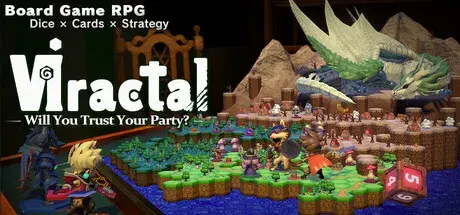
How to Play Viractal: Will You Trust Your Party? Online
Download the latest Viractal: Will You Trust Your Party? Online Fix to play multiplayer with your friends through Steam. This Online Fix includes all the required files to enable co-op gameplay. Follow the installation guide below to install the fix correctly, invite your friends, and enjoy online gameplay.
Installation
Download the Online Fix files.
Extract the archive using the password:
zeigames.com
Copy all extracted files into your Viractal: Will You Trust Your Party? installation folder and replace existing files if prompted.
Launching the Game
Sign in to your Steam account.
Run VIractal.exe from the game directory.
Wait for the game to load.
Playing with Friends
Make sure you and your friends are added as friends on Steam.
Create or host a multiplayer session.
Invite your friends through the in-game invite system.
If Invites Don't Work
Some versions of the Online Fix may have issues with the built-in invite feature.
If the in-game invite button doesn't work:
Open the Steam Overlay (Shift + Tab).
Find your friend's profile in your Steam Friends list.
Right-click their name and select Invite to Game (Spacewar).
Your friend can then accept the invitation and join your session.
Need Help with Online Fix?
If you're not familiar with Online Fix or Steam invitations, check out our guide:
How to Play Games Online?
Enjoy playing Viractal: Will You Trust Your Party? online with your friends!
Looking for the Full Game?
Looking for the full version of Viractal: Will You Trust Your Party?? Visit our Viractal: Will You Trust Your Party? Free Download page below.
- 109 Downloads
-
How to Play LANESPLIT Online
Download the latest LANESPLIT Online Fix to play multiplayer with your friends through Steam. This Online Fix includes all the required files to enable co-op gameplay. Follow the installation guide below to install the fix correctly, invite your friends, and enjoy online gameplay.
Installation
Download the Online Fix files.
Extract the archive using the password:
zeigames.com
Copy all extracted files into your LANESPLIT installation folder and replace existing files if prompted.
Launching the Game
Sign in to your Steam account.
Run LANESPLIT.exe from the game directory.
Wait for the game to load.
Playing with Friends
Make sure you and your friends are added as friends on Steam.
Create or host a multiplayer session.
Invite your friends through the in-game invite system.
If Invites Don't Work
Some versions of the Online Fix may have issues with the built-in invite feature.
If the in-game invite button doesn't work:
Open the Steam Overlay (Shift + Tab).
Find your friend's profile in your Steam Friends list.
Right-click their name and select Invite to Game (Spacewar).
Your friend can then accept the invitation and join your session.
Need Help with Online Fix?
If you're not familiar with Online Fix or Steam invitations, check out our guide:
How to Play Games Online?
Enjoy playing LANESPLIT online with your friends!
Looking for the Full Game?
Looking for the full version of LANESPLIT? Visit our LANESPLIT Free Download page below.
- 160 Downloads
-
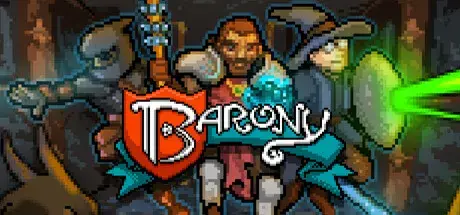
How to Play Barony Online
Download the latest Barony Online Fix to play multiplayer with your friends through Steam. This Online Fix includes all the required files to enable co-op gameplay. Follow the installation guide below to install the fix correctly, invite your friends, and enjoy online gameplay.
Installation
Download the Online Fix files.
Extract the archive using the password:
zeigames.com
Copy all extracted files into your Barony installation folder and replace existing files if prompted.
Launching the Game
Sign in to your Steam account.
Run Barony.exe from the game directory.
Wait for the game to load.
Playing with Friends
Make sure you and your friends are added as friends on Steam.
Create or host a multiplayer session.
Invite your friends through the in-game invite system.
If Invites Don't Work
Some versions of the Online Fix may have issues with the built-in invite feature.
If the in-game invite button doesn't work:
Open the Steam Overlay (Shift + Tab).
Find your friend's profile in your Steam Friends list.
Right-click their name and select Invite to Game (Spacewar).
Your friend can then accept the invitation and join your session.
Need Help with Online Fix?
If you're not familiar with Online Fix or Steam invitations, check out our guide:
How to Play Games Online?
Enjoy playing Barony online with your friends!
Looking for the Full Game?
Looking for the full version of Barony? Visit our Barony Free Download page below.
- 1,308 Downloads
-
How to Play Vampires: Bloodlord Rising Online
Download the latest Vampires: Bloodlord Rising Online Fix to play multiplayer with your friends through Steam. This Online Fix includes all the required files to enable co-op gameplay. Follow the installation guide below to install the fix correctly, invite your friends, and enjoy online gameplay.
Installation
Download the Online Fix files.
Extract the archive using the password:
zeigames.com
Copy all extracted files into your Vampires: Bloodlord Rising installation folder and replace existing files if prompted.
Launching the Game
Sign in to your Steam account.
Run VBR.exe from the game directory.
Wait for the game to load.
Playing with Friends
Make sure you and your friends are added as friends on Steam.
Create or host a multiplayer session.
Invite your friends through the in-game invite system.
If Invites Don't Work
Some versions of the Online Fix may have issues with the built-in invite feature.
If the in-game invite button doesn't work:
Open the Steam Overlay (Shift + Tab).
Find your friend's profile in your Steam Friends list.
Right-click their name and select Invite to Game (Spacewar).
Your friend can then accept the invitation and join your session.
Need Help with Online Fix?
If you're not familiar with Online Fix or Steam invitations, check out our guide:
How to Play Games Online?
Enjoy playing Vampires: Bloodlord Rising online with your friends!
Looking for the Full Game?
Looking for the full version of Vampires: Bloodlord Rising? Visit our Vampires: Bloodlord Rising Free Download page below.
- 55 Downloads
-
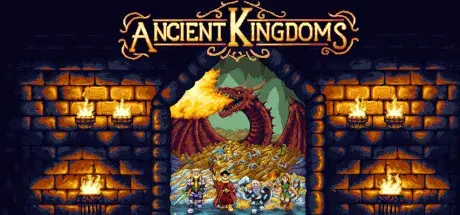
How to Play Ancient Kingdoms Online
Download the latest Ancient Kingdoms Online Fix to play multiplayer with your friends through Steam. This Online Fix includes all the required files to enable co-op gameplay. Follow the installation guide below to install the fix correctly, invite your friends, and enjoy online gameplay.
Installation
Download the Online Fix files.
Extract the archive using the password:
zeigames.com
Copy all extracted files into your Ancient Kingdoms installation folder and replace existing files if prompted.
Launching the Game
Sign in to your Steam account.
Run Ancient Kingdoms.exe from the game directory.
Wait for the game to load.
Playing with Friends
Make sure you and your friends are added as friends on Steam.
Create or host a multiplayer session.
Invite your friends through the in-game invite system.
If Invites Don't Work
Some versions of the Online Fix may have issues with the built-in invite feature.
If the in-game invite button doesn't work:
Open the Steam Overlay (Shift + Tab).
Find your friend's profile in your Steam Friends list.
Right-click their name and select Invite to Game (Spacewar).
Your friend can then accept the invitation and join your session.
Need Help with Online Fix?
If you're not familiar with Online Fix or Steam invitations, check out our guide:
How to Play Games Online?
Enjoy playing Ancient Kingdoms online with your friends!
Looking for the Full Game?
Looking for the full version of Ancient Kingdoms? Visit our Ancient Kingdoms Free Download page below.
- 289 Downloads














Last Updated
-
- 145 Downloads
- 0 Comments
-
- 9 Downloads
- 0 Comments
-
- 3 Downloads
- 0 Comments
-
- 0 Downloads
- 0 Comments
-
- 8 Downloads
- 0 Comments




File Comments
-
Been playing online since the 5th with no issues. Now getting a "Backend Login Failed, Invalid Response!" error when attempting to access online multiplayer.
-
I cant get the DLCs to get working, literally tried everything. If I run the game with the provided steamapi64.dll this error shows up and the game wont launch: Easy Anti-Cheat Unknown file version (C:\Games\Halloween.v1.0.0.69333.ZeiZavoGames.com\Engine\Binaries\ThirdParty\Steamworks\Steamv161\Win64\steam_api64.dll). If i remove the file and use the original one (clean file) the game launches and is playable but no dlc. Please help!
-
You can't play private lobby.
-
when i am playing with my friend, i got error 1 anticheat, every time i am not the host, and when i am the host my friend got error 1 anticheat every time
-
Nop but you can still play without problems
-
it opens epic games every 20 minutes
-
The same problem of the game crashing is happening with v1.0.50.
-
does anyone know a solution to the error code from anti cheat?
-
Somehow screen goes black when i try to invite my friend, and yes i applied online fix correctly + have antivirus turned off
-
Anyway to change the ingame language?




Top Downloads
-
- 922 Downloads
- 1 Comments
-
- 895 Downloads
- 5 Comments
-
- 723 Downloads
- 0 Comments
-
- 153 Downloads
- 9 Comments
-
- 132 Downloads
- 7 Comments



-
- 3,197 Downloads
- 0 Comments
-
- 991 Downloads
- 1 Comments
-
- 971 Downloads
- 9 Comments
-
- 895 Downloads
- 5 Comments
-
- 504 Downloads
- 19 Comments

-
- 8,574 Downloads
- 9 Comments
-
- 7,512 Downloads
- 4 Comments
-
- 6,635 Downloads
- 20 Comments
-
- 6,030 Downloads
- 3 Comments
-
- 5,830 Downloads
- 0 Comments




-
- 21,189 Downloads
- 4 Comments
-
- 9,968 Downloads
- 0 Comments
-
- 9,488 Downloads
- 9 Comments
-
- 8,688 Downloads
- 0 Comments
-
- 8,290 Downloads
- 0 Comments